 Get YouTube Text
How to Get a YouTube Transcript on Your Phone (iPhone & Android)
Most people watch YouTube on their phone. So it makes sense to want the transcript on your phone too. Maybe you are on a bus and want to read a video instead of listening. Maybe you need to grab a quote for a text. Or maybe you just want to skim a long video fast, without watching the whole thing.
Here is the tricky part. YouTube’s own transcript is a computer feature. In the phone app, it is hidden or missing. That is why so many people search for how to do this on a phone at all. The good news is that you do not need the app for this. You can get a clean transcript on any phone, in your browser, in a few taps.
This guide shows you the easy way to get a YouTube transcript on your phone. It works on iPhone and on Android. It works in Safari, Chrome, or any browser. It is free, and there is no app to install. Just follow the steps below.
How to get a YouTube transcript on your phone
The whole idea is simple. You copy the video link in the YouTube app. Then you paste it into a web tool that gives you the text. That is it. Here is each step, with phone screenshots so you can follow along.
Step 1: Copy the video link
First, you need the link to the video. Open the video in the YouTube app on your phone. Look under the video for the Share button and tap it. A row of options slides up from the bottom.
In that row, tap Copy link. This saves the video’s web address to your clipboard. Your clipboard is just a place your phone holds things you copy, so you can paste them later. You will not see anything happen, but the link is now saved.
This works the same way on iPhone and on Android. The Share button is in the same spot in both apps. If you are watching the video in a browser instead of the app, you do not even need the Share button. Just tap the address bar at the top, then copy the link that is already there.
Step 2: Open the transcript tool in your browser
Now open a new tab in your browser. On an iPhone this is usually Safari. On Android it is usually Chrome. Any browser works, so use the one you like.
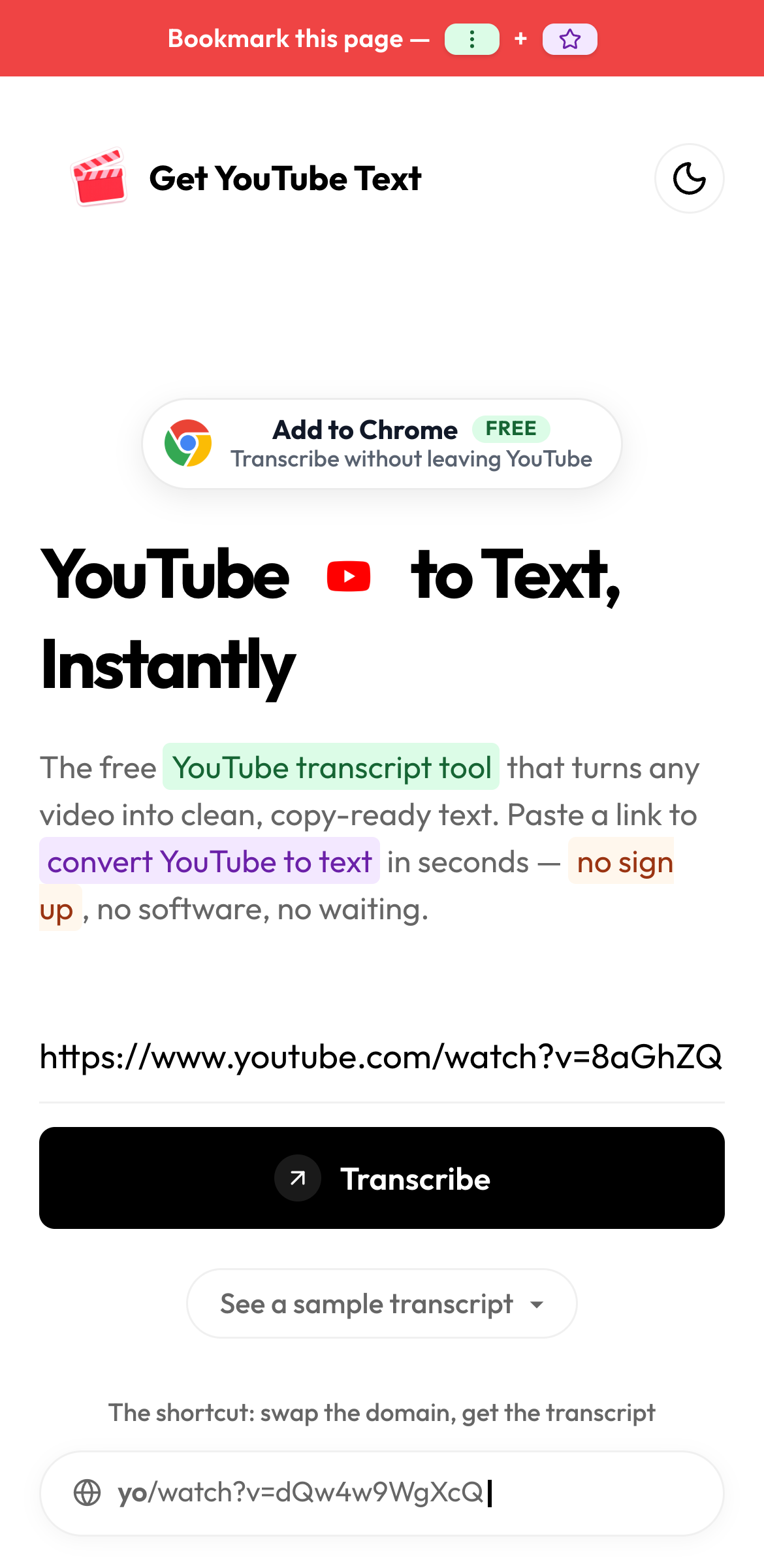
In the address bar, type getyoutubetext.comand go. The page looks just like it does on a computer, only sized to fit your phone screen. You will see a box that says “Paste a YouTube video link here.” That box is where the link goes.
Tap once inside the box so the keyboard comes up. Then paste the link you copied in Step 1. To paste on a phone, press and hold inside the box for a second, then tap Paste when it pops up. The link should fill the box.
Step 3: Tap the button and read the transcript
With the link in the box, tap the button next to it. Wait a few seconds. The tool reads the video’s captions and turns them into text for you.
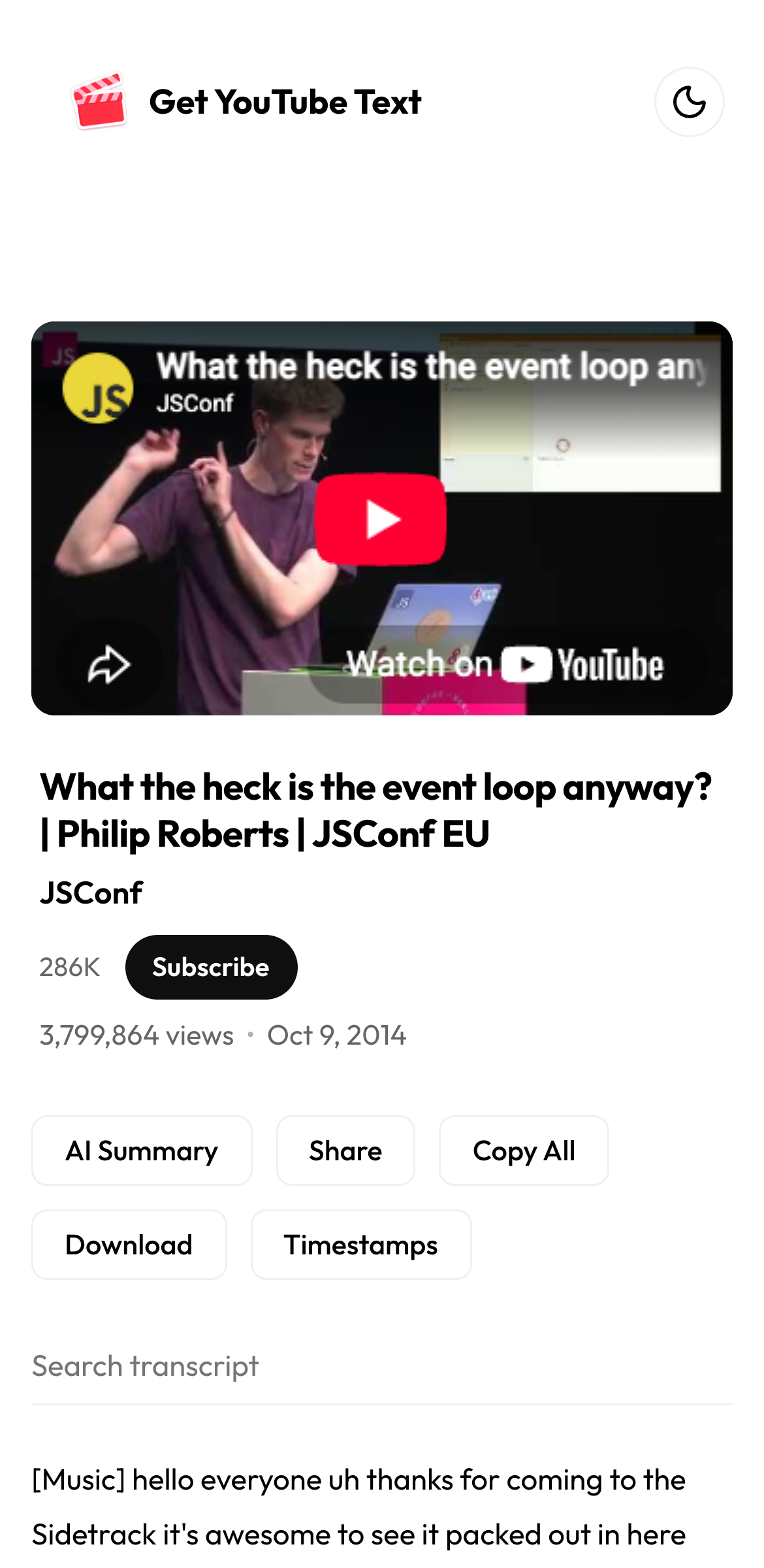
When it is done, you see the video at the top and the full transcript below it. The text is the whole video, written out, so you can read it like a page. You can scroll through it with your thumb, the same way you scroll anything else on your phone.
The transcript is linked to the video. If you tap any line of text, the video jumps to that exact moment and starts playing there. So if you read something interesting and want to hear it, just tap the line. This is handy when you want to check that you read a quote right.
Step 4: Copy, search, or save the text
Now you can do something with the text. Above the transcript there is a search box. Type a word into it, and the text shrinks to only the lines with that word. This is the fast way to find one thing in a long video, with no scrolling.
To copy everything, tap Copy All. The whole transcript goes to your clipboard, and you can paste it into Notes, a message, or a doc. To save a copy, tap Download and pick a format. You can even save it as a PDF to read later with no internet, or drop it into Notion.
Everything here works with taps. There are no menus hidden behind a right-click, and nothing needs a mouse. That is the point: a clean transcript, made for a phone.
A faster shortcut on your phone
There is a trick that saves you Steps 1 and 2. When a YouTube video is open in your phone browser, tap the address bar. Change the word youtube.com to getyoutubetext.com and go.
You land right on the transcript for that video. No copying, no pasting, no new tab. It only works when the video is open in a browser, not the app, but it is the quickest way to read a video on your phone.
Why the YouTube app does not show a transcript
On a computer, YouTube has a transcript hidden under the …more menu below the video. On the phone app, that choice is usually not there. That is just how the app is built, and it is the main reason people get stuck trying to do this on a phone.
A web tool fixes this, and it gives you cleaner text anyway. The app’s panel, when it shows up at all, glues a timestamp to every line and gives you no way to download. The web version lets you turn timestamps off, copy clean text, and save the file. So you are not missing out by skipping the app.
Does the video need captions?
Yes. A transcript is made from the video’s captions. Captions are either added by the creator or made by YouTube on their own. Most videos where someone talks have them. If a video has its captions turned off, there is no text to pull, and no tool can make up words that were never written down. If you see the CC button on the player, the video has captions, and you can get the transcript.
You can try it right here, on your phone or your computer:
Get any YouTube transcript on your phone
Paste a link in your phone browser and read the whole video as text. Free, no app, no sign up.