 Get YouTube Text
How to Take Fast Notes from a YouTube Video
Taking notes from a YouTube video the old way is slow. You pause the video. You write a line. You rewind to catch what you missed. You lose your place. By the end, you have a messy page of notes and no idea where anything was in the video. There is a much faster way, and it starts with the transcript.
Once a video is text, taking notes changes completely. You can read the whole thing in a few minutes. You can search it to find the one part you care about. You can keep the best lines with one click. You can even let AI pull out the key points for you. No pausing. No rewinding. No missing anything.
This guide shows you how to take fast, clean notes from any YouTube video. You will use the built-in notes pad, which saves your notes for each video, and the AI summary button, which can write the notes for you. It works for lectures, tutorials, podcasts, and talks. It is free, with no sign up.
How to take notes from a YouTube video
The trick is simple. Turn the video into text first. Then work with the text instead of the video. Here is each step.
Step 1: Open the video as a transcript
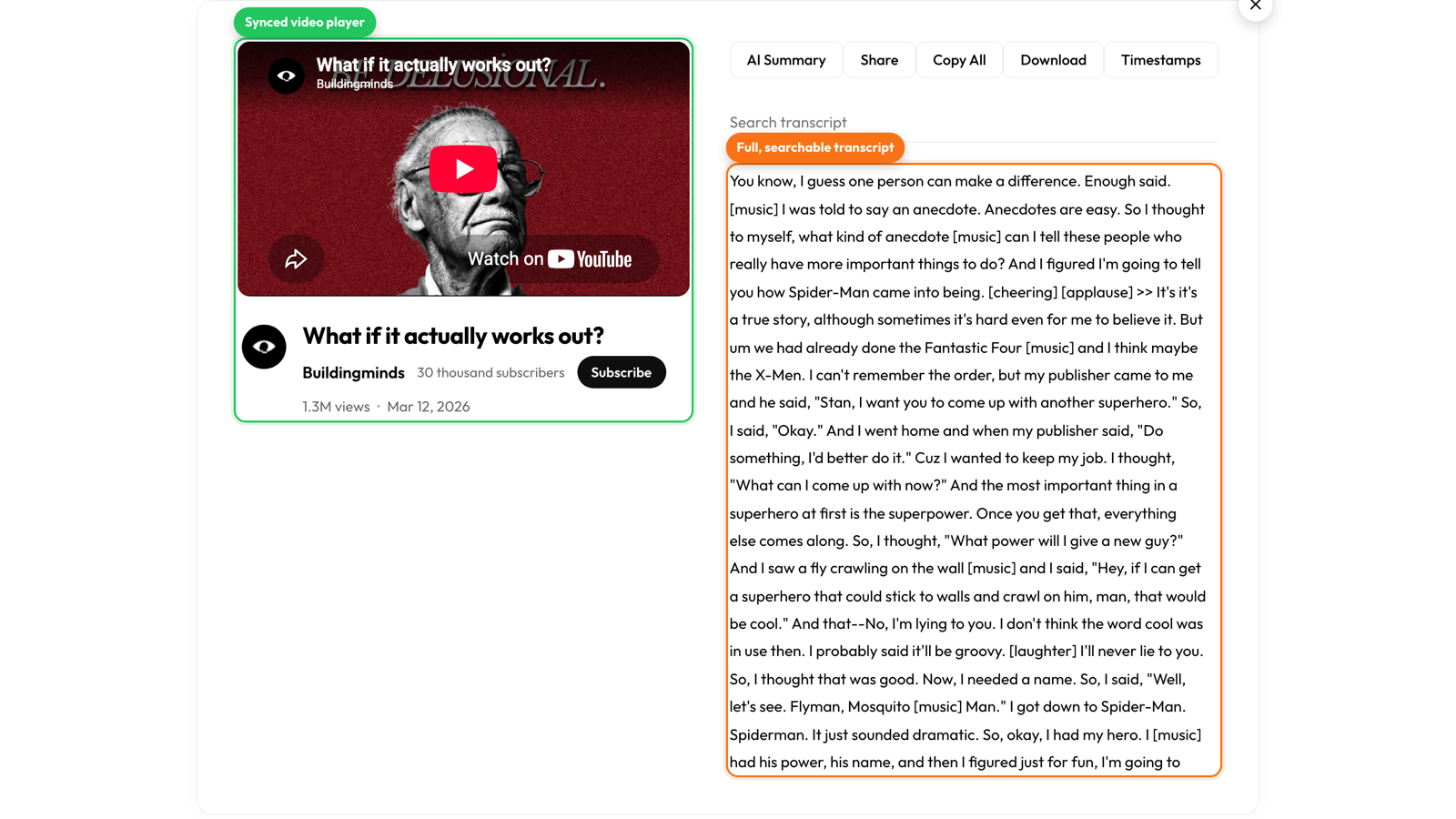
First, get the video as text. To get the built-in notes pad, open your video on the YouTube Lecture to Notes page. Paste your video link there, and you get the full transcript with a notes pad right below it. (The main transcript tool gives you the text too, but the notes pad lives on this page.)
In a few seconds you see the video on one side and the full transcript on the other. The two are linked. If you tap or click any line of text, the video jumps to that moment. This is useful later, when you want to hear a part again before you write it down.
Reading the transcript is where the time savings begin. You do not have to play the video at all if you do not want to. You can just read the words, like a page, and pick out what matters. A 40-minute video becomes a few minutes of reading. That alone makes note-taking far less painful than pausing and rewinding.
Step 2: Write in the built-in notes pad
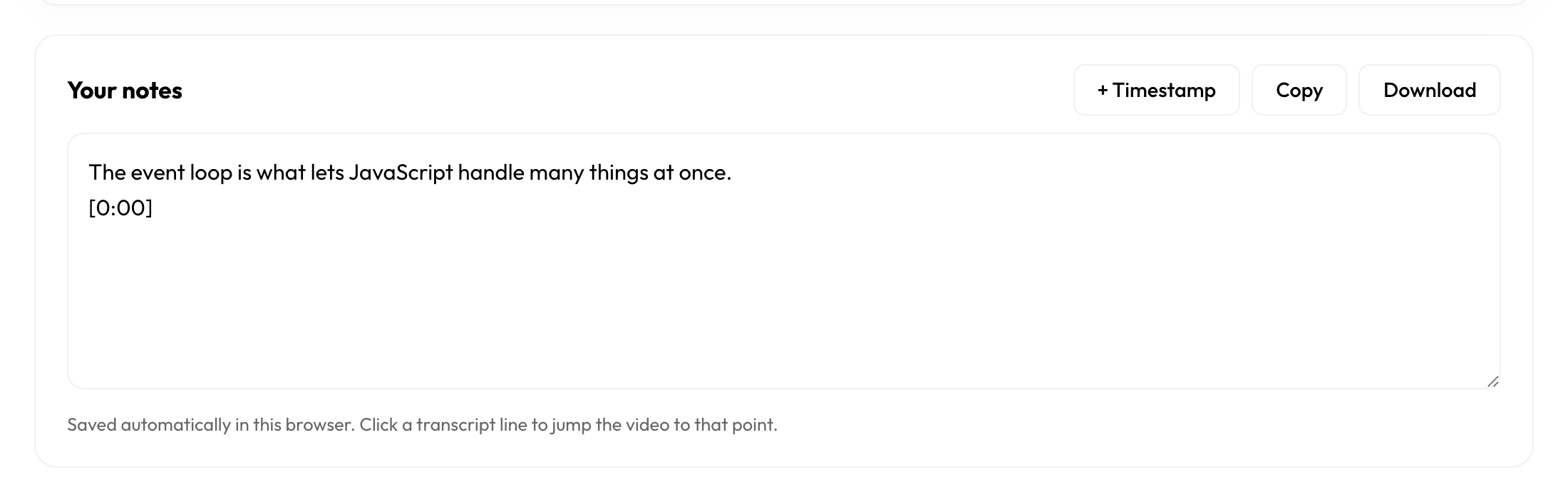
You do not need a second app for your notes. The Lecture to Notes page has a notes pad built right in, below the transcript. You can type your notes there as you read.
The best part is the + Timestamp button. When you are at an interesting part of the video, tap it. It drops the current time, like [2:15], into your notes. So your note is tied to the exact moment in the video. Later, you can click that time to jump right back to it. This turns your notes into a map of the video.
Your notes save on their own. They are kept for that video, right in your browser. So if you come back to the same video tomorrow, your notes are still there. You do not have to save anything or sign up. When you are done, tap Copy to copy your notes and paste them anywhere you like.
Step 3: Search to find the parts that matter
You do not have to read every word. Above the transcript there is a search box. Type a word or a short phrase, and the transcript shrinks to only the lines that have it. This is the fast way to find the one point you need in a long video.
For example, if you are watching a cooking video and you only want the sauce recipe, search for sauce. The transcript jumps to every place that word is said. You read just those lines, write your note, and you are done. No scrolling through the whole thing.
Because each line still has its time next to it, you always know where in the video that part happens. Click the line, and the video plays from there. So searching is not just faster, it also helps you jump around the video with no guessing.
Step 4: Let AI write the notes for you
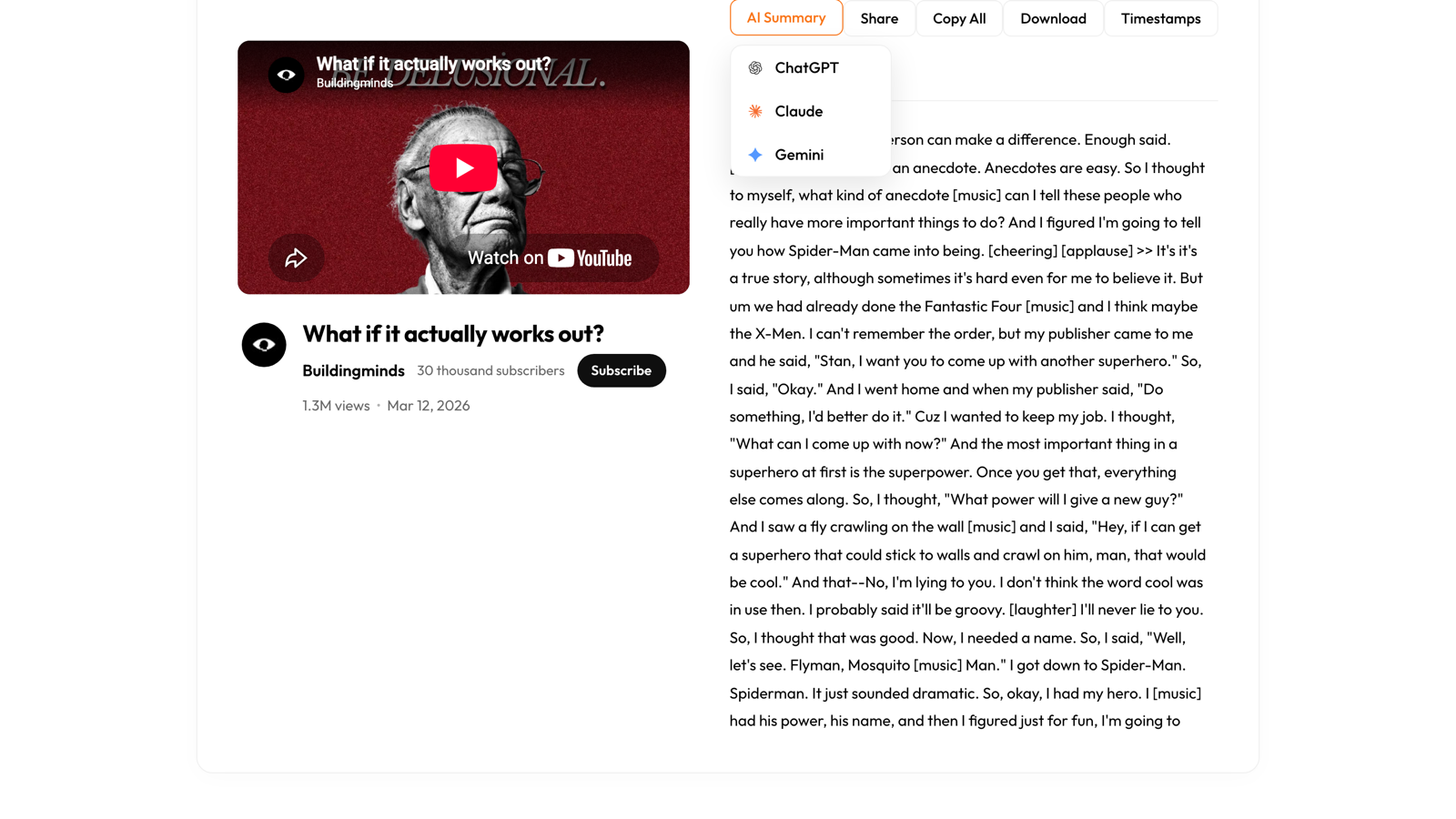
This is the fastest way of all. You can have AI read the whole transcript and make the notes for you. Tap the AI Summary button. It sends the full transcript to ChatGPT, Claude, or Gemini.
Then you ask for what you want. You can ask for a short summary, the main points, a step-by-step list, or even questions to test yourself. The AI reads the whole video and writes it up in about a minute. A long talk turns into a tidy page of notes without you writing a single line.
The trick is to ask for the shape you want. Do not just say “summarize.” Say “give me 5 bullet points,” or “list the steps,” or “pull out the key quotes with their timestamps.” The clearer you ask, the better the notes you get back.
Tips for better video notes
Mix the two ways. Let AI make a first draft of the notes, then add your own lines in the notes pad, with timestamps, for the parts you care about most. You get the speed of AI and the detail of your own notes.
Keep timestamps for study. If you plan to rewatch a section later, keep the times in your notes. Each note points to a moment, so you can jump straight back to it instead of hunting through the video.
Clean up messy text. If stray timestamps get into your copied text, run it through the timestamp remover so your notes read smoothly. You can also check how long a transcript is with the word counter before you start.
Save your notes where you work
Keep everything in one place. Copy your notes into your notes app, or send a formatted transcript straight to Notion with YouTube to Notion. For study, save a tidy copy as a PDF you can read offline and highlight. Taking notes from a lecture? The YouTube Lecture to Notes page is made for exactly that.
Try it on your next video:
Turn any video into notes in minutes
Read the transcript, write in the built-in notes pad, or let AI pull the key points. Free, no sign up.