 Get YouTube Text
SRT vs VTT: Which Subtitle Format Should You Use?
If you have ever downloaded subtitles, you have seen two file types: SRT and VTT. They look almost the same when you open them. They do the same basic job, which is to show timed text on a video. So when a tool or a video player asks for one or the other, it is easy to get stuck wondering which to pick.
Here is the short answer. Use SRT for video editors, media players, and most upload forms. Use VTT for websites and video that plays in a web page. They are so close that you can switch between them in a second. But each one has a home where it fits best.
This guide explains the difference between SRT and VTT in plain words. It shows you exactly what sets them apart, with examples you can see. Then it tells you which one to use and when, and how to turn one into the other.
SRT vs VTT at a glance
| SRT (SubRip) | VTT (WebVTT) | |
|---|---|---|
| Best for | Editors, players, uploads | Websites, web video |
| Time mark | Comma (00:00:01,000) | Period (00:00:01.000) |
| Header line | None | Needs WEBVTT |
| Line numbers | Yes | Not needed |
| Styling and position | No | Yes |
What is SRT?
SRT is short for SubRip. It is the most common subtitle file in the world. Almost every video editor, media player, and upload page can use it. If you are not sure which type to pick, SRT is the safe choice, because it works nearly everywhere.
An SRT file is just plain text. It is made of blocks called cues. Each cue has a number, a start time and an end time, and a line or two of text. Here is what one looks like:
1
00:00:01,000 --> 00:00:04,000
So the first thing you want to do is

2
00:00:04,000 --> 00:00:07,500
open the settings panel and click save
Look at two things here. First, there is a number at the top of each cue (1, then 2). Second, the time uses a comma before the last three digits, like 00:00:01,000. Those two details are the main things that make SRT different from VTT. Keep them in mind, because they are exactly what changes when you convert.
What is VTT?
VTT is short for WebVTT. It is the subtitle format built for the web. When a video plays inside a web page using HTML5, it uses VTT through a tag called <track>. So if you are a web developer adding captions to a video on a site, VTT is the one you need.
VTT can also do a few things SRT cannot, like placing the text in a certain spot on the screen or giving it a basic style. Most of the time you will not need those, but they are there. Here is the same subtitle as above, but in VTT:
WEBVTT

00:00:01.000 --> 00:00:04.000
So the first thing you want to do is

00:00:04.000 --> 00:00:07.500
open the settings panel and click save
See the differences? There is a WEBVTT header at the very top. The time uses a period instead of a comma, like 00:00:01.000. And the cue numbers are gone, because VTT does not need them. Those three small changes are the whole difference between the two files.
So which should you use?
Pick SRT if you are working in a video editor like Premiere or DaVinci Resolve. Pick it if you are uploading subtitles to a platform, or playing a file in VLC or another media player. It is the safe default that works almost everywhere, so when in doubt, use SRT.
Pick VTT if you are putting a video on a website with HTML5. Pick it if a tool asks you specifically for WebVTT. It is the web standard, and it is the one web pages expect. If your subtitles are for a site, VTT is the right choice.
How to convert between SRT and VTT
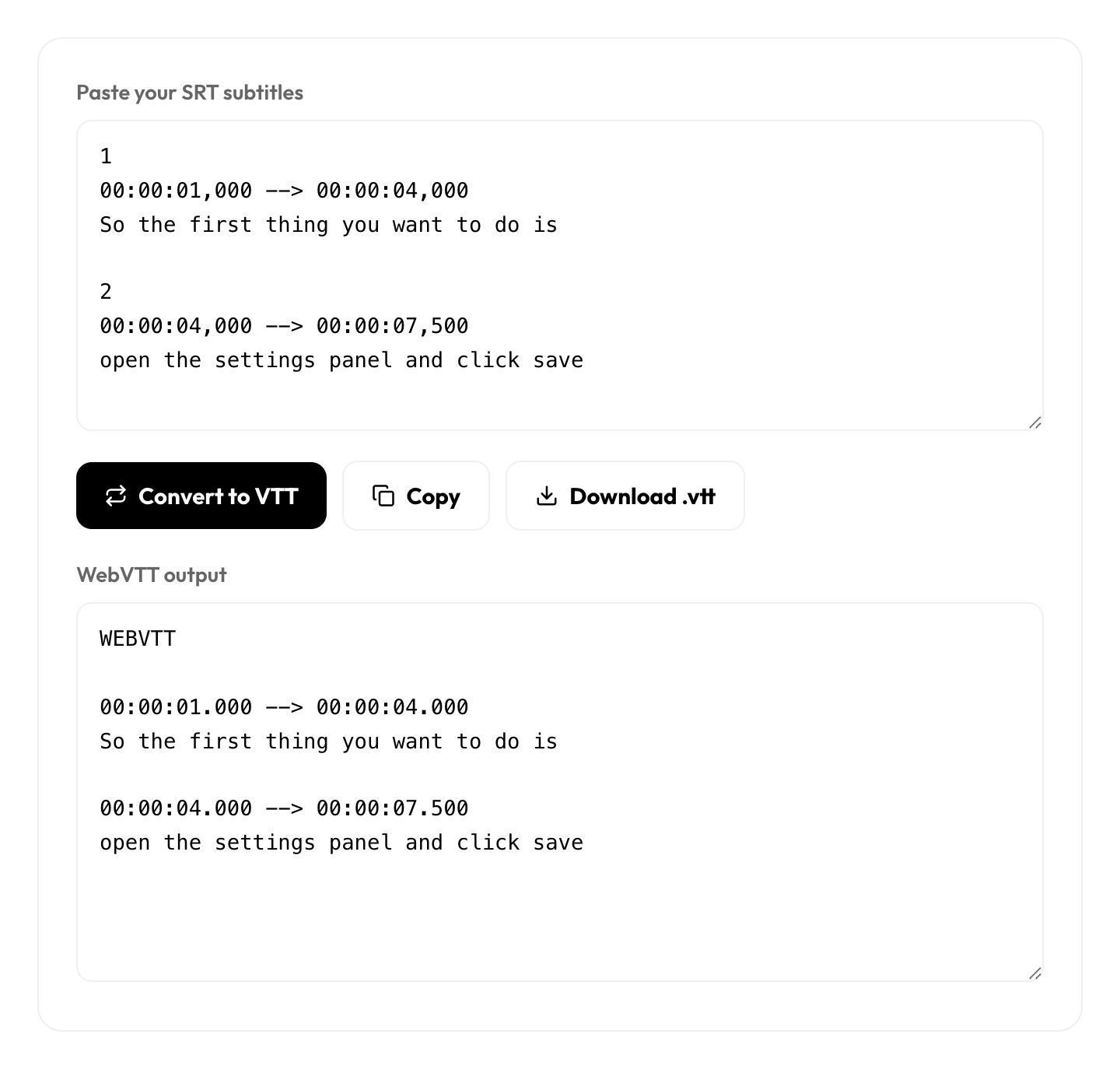
Because the two files are so close, changing one into the other takes a second. Our free SRT to VTT converter does the three small changes for you. It adds the WEBVTT header. It swaps the commas for periods in the times. And it removes the cue numbers. You paste your SRT, click the button, and copy or download the VTT.
Getting subtitles from a YouTube video
What if you do not have a subtitle file yet? You can pull one from any YouTube video that has captions. Use YouTube to SRTto download an SRT file. Then, if your website needs VTT, run it through the converter above. Both tools come from the video’s own captions, and both are free with no sign up.
Convert SRT to VTT in one click
Paste your subtitles and get clean, web-ready WebVTT right away. Free, no sign up.
Open the SRT to VTT converter, or grab subtitles from a video with YouTube to SRT.