 Get YouTube Text
How to Search for a Word Inside a YouTube Video
You remember a line from a YouTube video. But it is buried somewhere in a 40-minute recording. Dragging the timeline back and forth to find it is slow and annoying. What you really want is to search inside the video, the same way you search a web page, and jump right to the spot where those words are said.
YouTube does not give you a search box inside a single video. But there is an easy way to get one. Once you have the video’s transcript, you can search every word in it. Then you click your way to the exact second. No more guessing where you heard something.
This guide shows you how to search for a word or phrase inside any YouTube video. It uses the video’s transcript and a simple search box. It is free, it works on your phone and your computer, and it takes only a few seconds.
How to search inside a YouTube video
The trick is to turn the video into text first, then search the text. Here is each step, in order.
Step 1: Open the video as a transcript
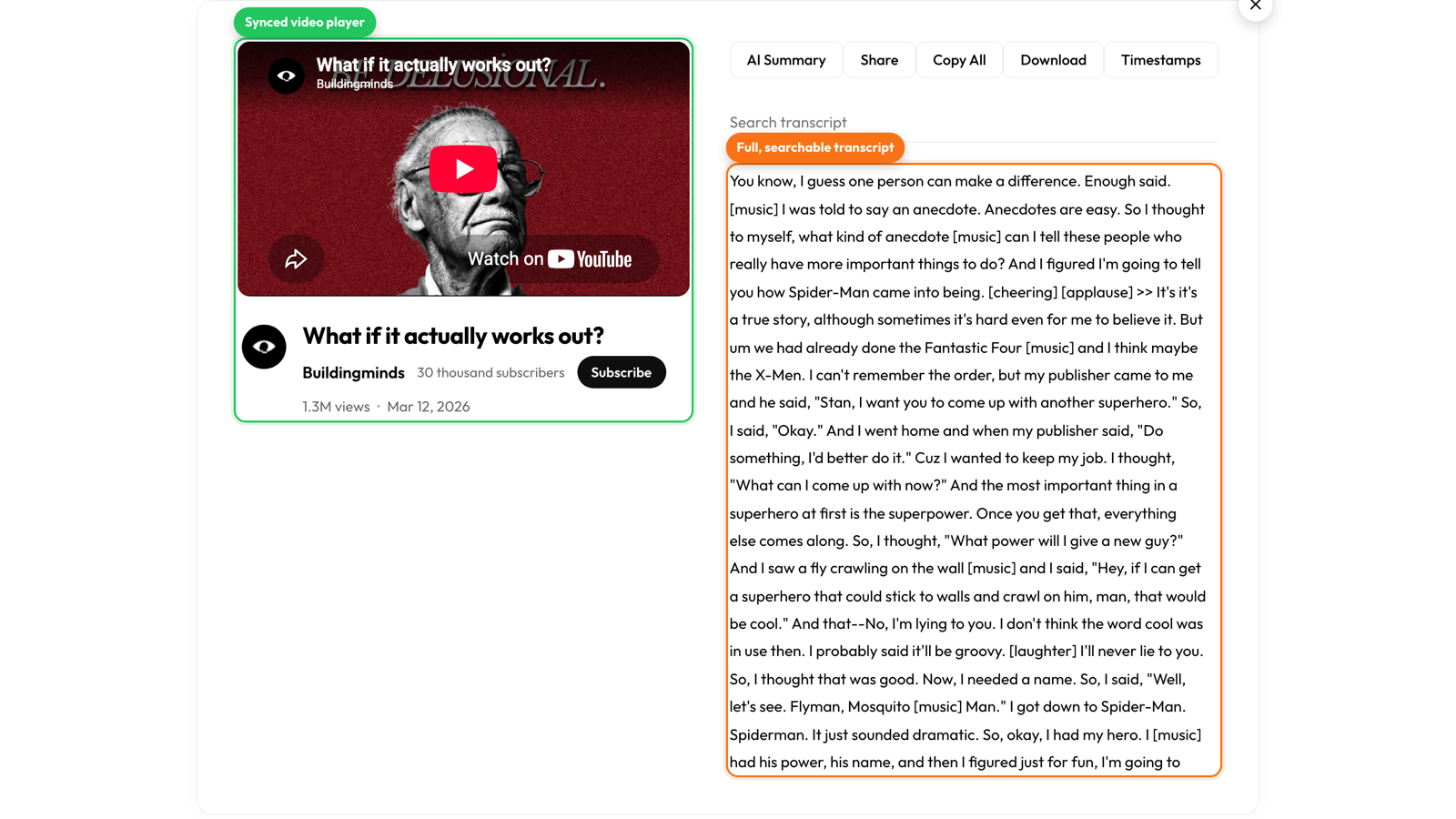
First, get the video as text. Copy the video link and paste it into Get YouTube Text. Or use the shortcut: change youtube.com to getyoutubetext.com in the address bar and press enter.
In a few seconds, you get the full transcript. The video sits on one side, and every spoken word is written out on the other. This is the key step, because you cannot search a video, but you can search text. Once the words are on the page, finding anything becomes easy.
The transcript is also linked to the video. Each line has a time next to it. And if you click a line, the video jumps to that moment and plays. Keep that in mind, because it is what makes the search so powerful in the next steps.
Step 2: Type your word in the search box
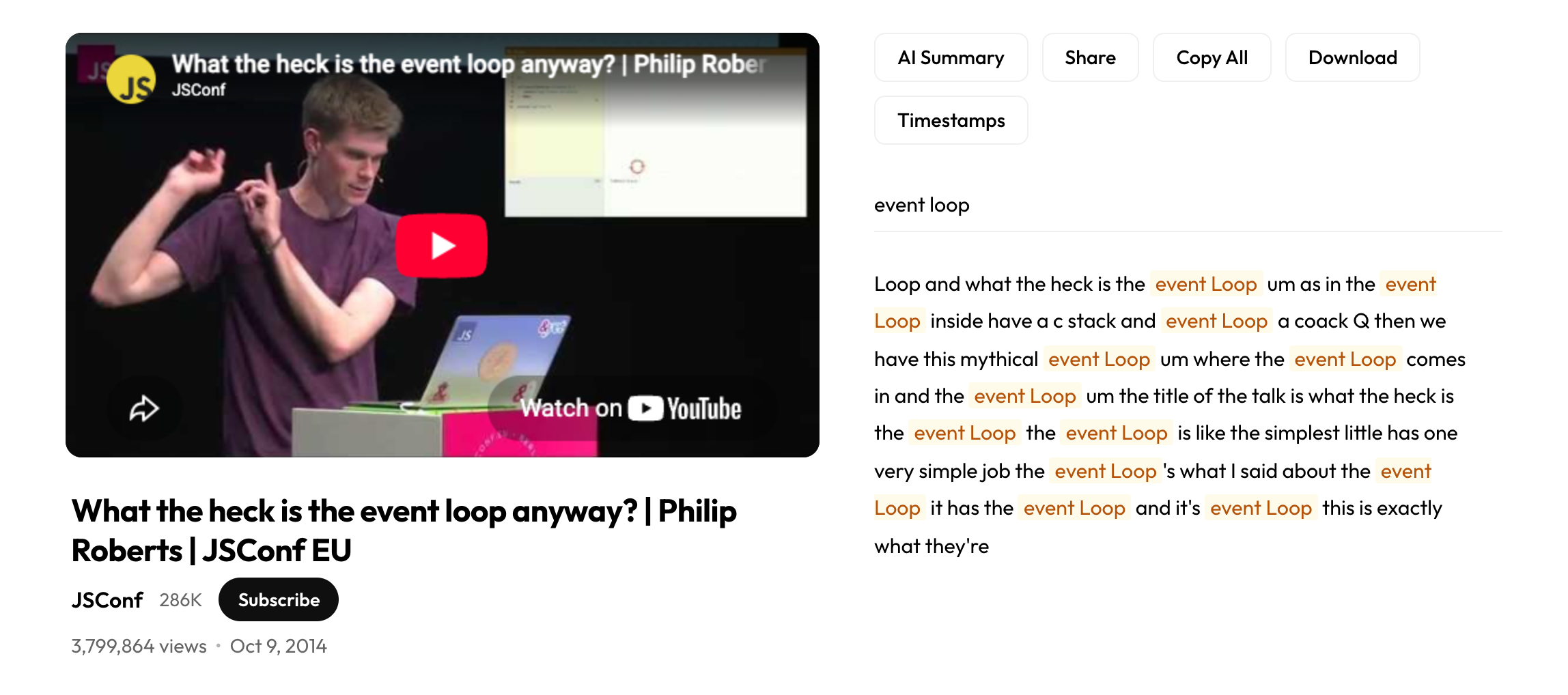
Above the transcript, there is a search box. Click it and type the word or short phrase you are looking for. As you type, the transcript changes. It shrinks to show only the lines that have your word in them.
So instead of reading the whole transcript, you see just the parts that matter. Each match keeps its timestamp, so you also see when in the video each one happens. If your word comes up three times, you see all three lines at once, with their times.
Your word is highlighted in the results, so it is easy to spot. This is just like using “find on page” in a browser, but for a video. You went from a 40-minute video to the three exact lines you cared about, in a couple of seconds, with no scrubbing.
Step 3: Click the line to jump the video there
Now for the best part. Because the transcript is linked to the video, you can click any line in your search results. When you do, the video jumps straight to that moment and starts playing.
So the full trip is quick. You search for a phrase. You see the few places it comes up. You click the one you want. The video plays from that exact second. You never had to drag the timeline or guess. You found the moment by its words, not by hunting through the video.
This also helps when there is more than one match. Say a word is used in three places, but you only want the part where it is explained. You can read the three lines, pick the right one by its context, and jump straight there. The search does the finding, and the click does the jumping.
Why this beats dragging the timeline
Dragging along the timeline is a guessing game. You drop the marker, you overshoot, you go back too far, and you do it again. In a long video, this can take minutes and still miss the spot.
Searching the transcript is exact. You see the words in context. You see how many times they come up. And you land on the precise second with one click. It turns finding a moment from a slow chore into a two-second task. Once you try it, scrubbing a long video feels painful by comparison.
Handy ways to use it
Find a quote. Search for a few words you remember, then copy the full line to quote it correctly. No typing from memory and getting it wrong.
Check if a video covers a topic. Before you watch a long tutorial, search for the term you care about. If it is there, you see where. If it is not, you saved yourself the watch.
Study faster. In a lecture, search for a key word to jump to the part that explains it. You go straight to what you need instead of watching the whole class again.
Want to keep what you find?
Once you have found what you need, you can keep it. Copy the line, or copy the whole transcript. Save it to Notion, or save it as a PDF to read later. You can also check how long a transcript is first with the word counter.
Try searching inside a video now:
Search any YouTube video by its words
Open the transcript, type a word, and jump straight to the moment. Free, no sign up.