 Get YouTube Text
How to Get a YouTube Transcript Online for Free
If you have ever tried to take notes from a long YouTube video, you already know the pain: pausing every few seconds, scrubbing back to catch a sentence, and losing your train of thought. A transcript fixes all of that. Once a video is in text, you can read it in a couple of minutes, search it, quote it, and paste it into an AI tool for a summary.
The good news is that you do not need any software, an account, or a paid plan to do this. Every YouTube video that has captions — and the vast majority do, either uploaded by the creator or generated automatically — can be turned into clean, readable text in seconds.
In this guide I will show you two free ways to get a YouTube transcript online. The first uses Get YouTube Text, which gives you a formatted, searchable transcript with one click. The second pulls the raw transcript straight from YouTube itself, which is handy when you are already on the video page. Pick whichever fits your moment.
How to get YouTube transcripts for free
There is no single “right” way to do this — it depends on what you want at the end. If you want something you can copy, download, search, or send to ChatGPT, use a dedicated tool. If you just want to skim the words without leaving YouTube, the built-in transcript panel is enough. Both are free, so here is each one, step by step.
Method 1 — Using GetYouTubeText.com
This is the fastest route when you actually want to use the transcript rather than just glance at it. You paste a link, and you get back the full text neatly formatted, with a synced video player, search, timestamps, one-click copy, downloads in six formats, and a button to send the whole thing to an AI. There is no sign up and nothing to install.
You can try it right here without leaving this page:
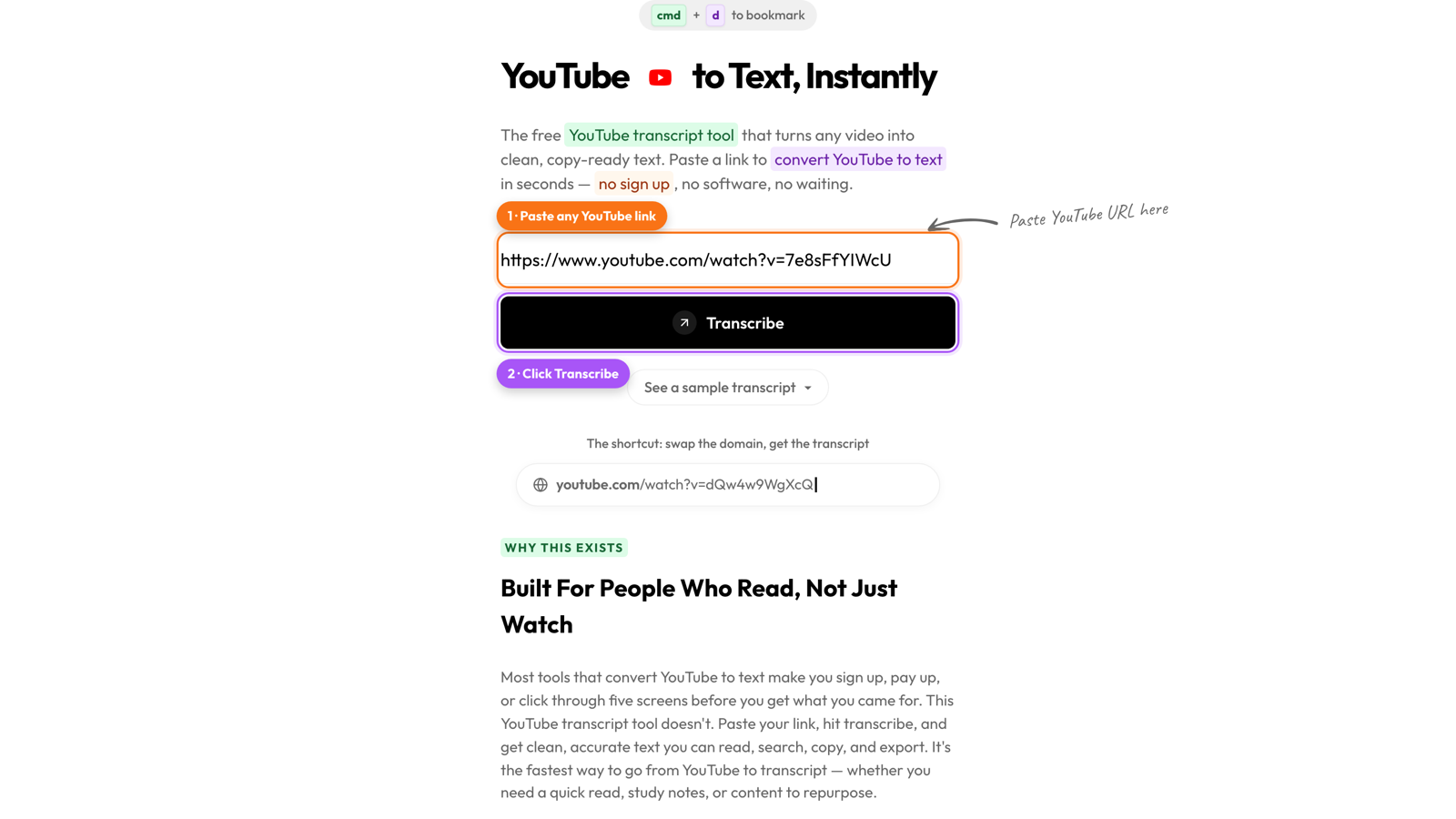
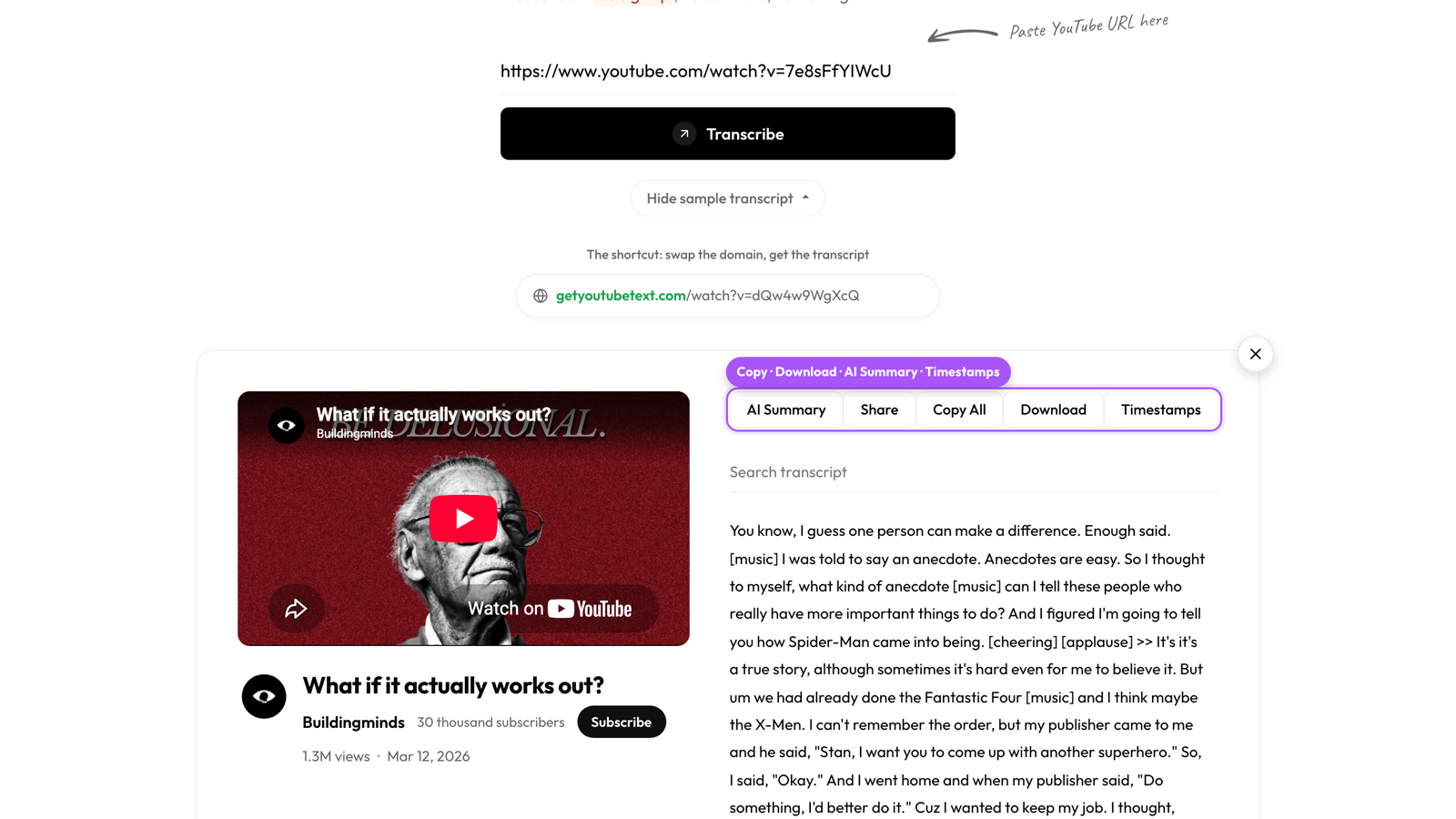
Step 1: Copy the YouTube link and paste it in
Open the video you want on YouTube and copy its URL from the address bar (or the Share button). Then head to getyoutubetext.com and paste the link into the box on the home page. It accepts any normal YouTube URL — full youtube.com/watch?v=… links, short youtu.be/…links, and even Shorts.
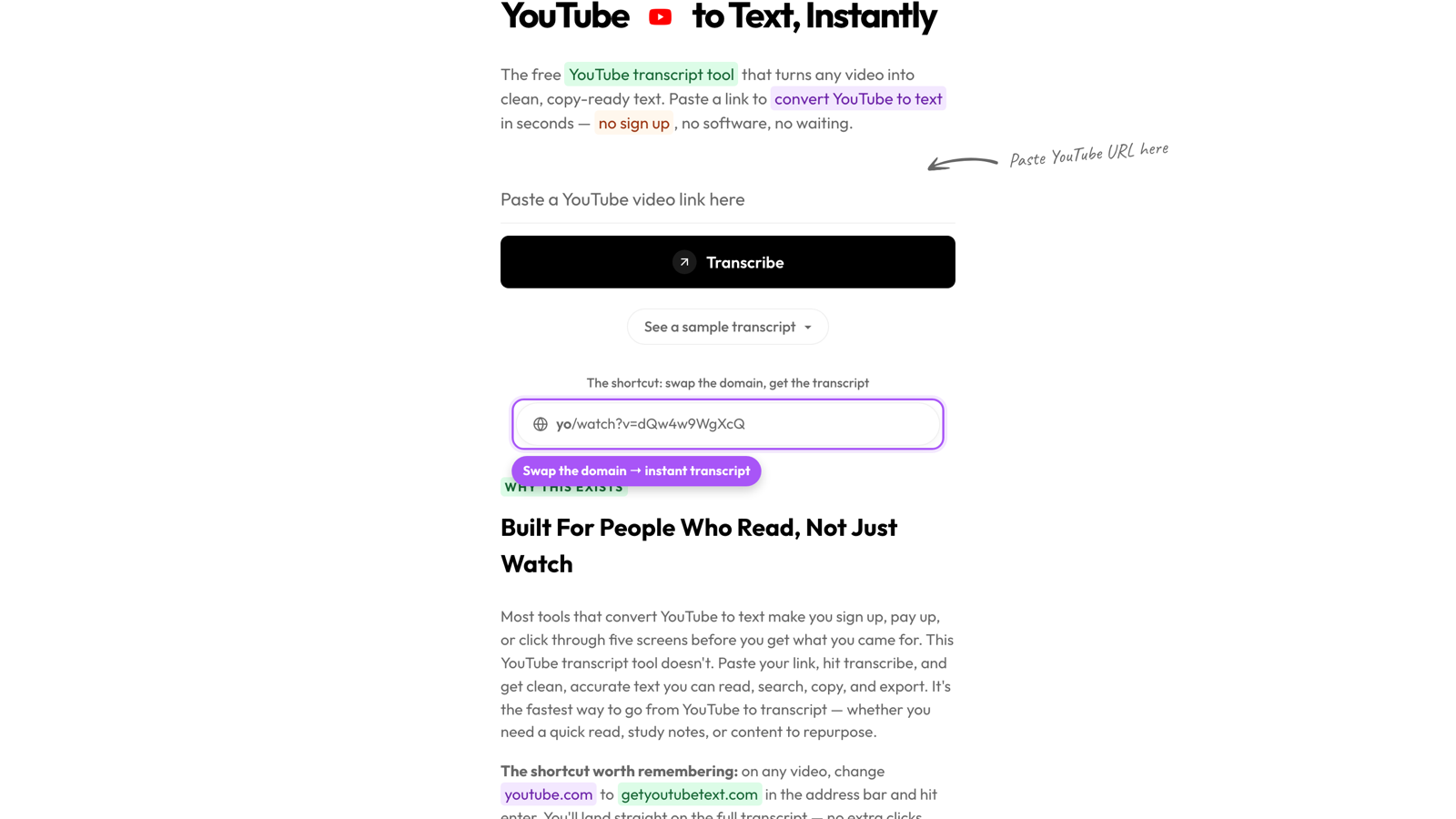
There is also a shortcut worth remembering: on any video, change youtube.com to getyoutubetext.com in the address bar and press enter. You will land straight on the transcript for that video — no copying and pasting at all.
Step 2: Hit Transcribe and read the result
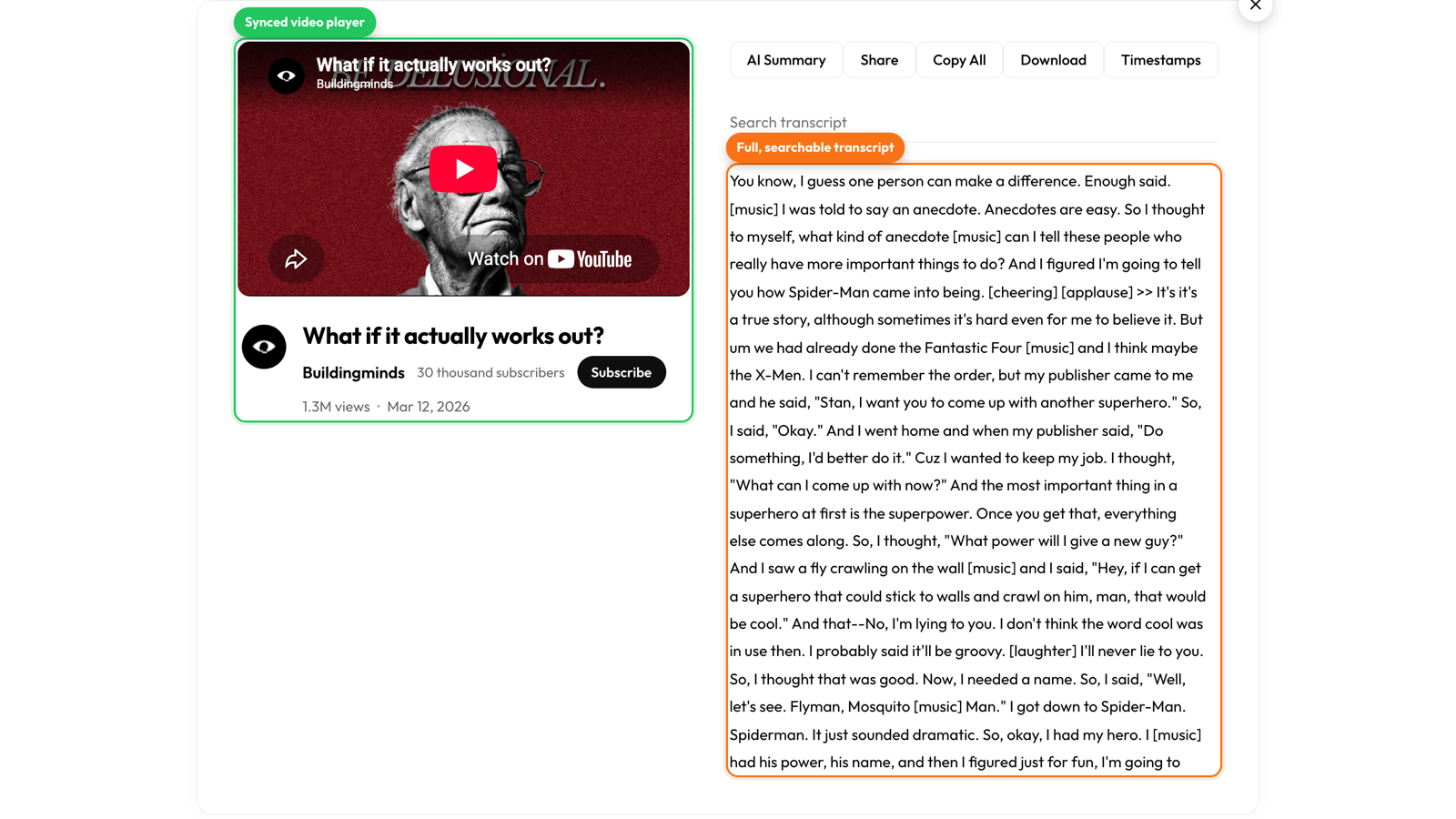
Click Transcribe. Within a few seconds you are taken to a clean page with the video on one side and the full transcript on the other. The transcript is synced to the video, so as it plays the current line is highlighted, and clicking any line jumps the video to that exact moment. That makes it easy to verify a quote or find the part you actually care about.
There is a search box above the transcript too. If you are looking for one specific point in a long podcast or lecture, type a word and jump right to it instead of scrolling through everything.
Step 3: Copy, download, or send it to AI
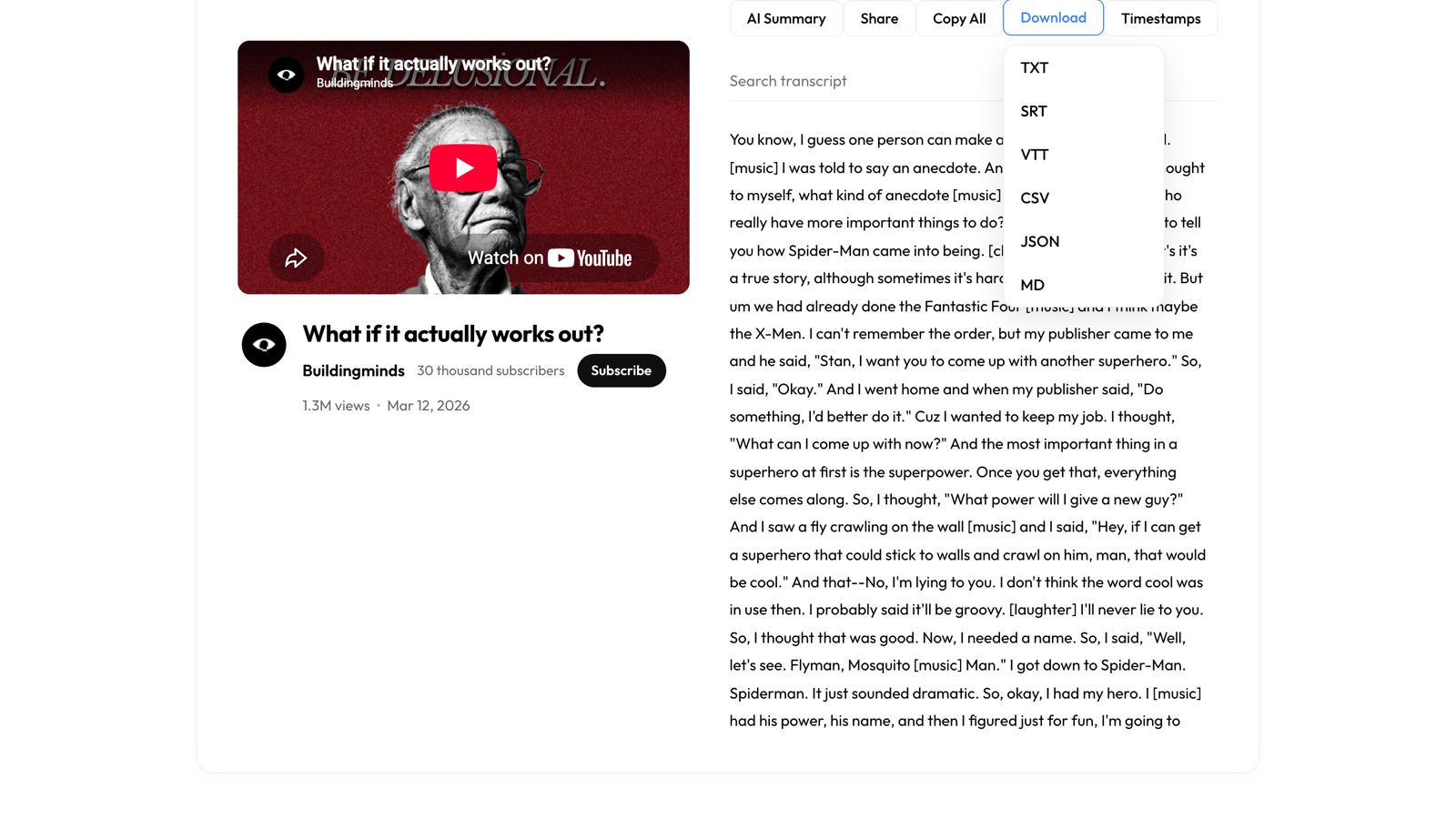
Now do something with it. Copy All puts the entire transcript on your clipboard so you can drop it into a doc. Download saves it as TXT, SRT, VTT, CSV, JSON, or Markdown — with or without timestamps, and you can even break it into 30- or 60-second chunks, which is useful if you are feeding it into a retrieval or RAG pipeline.
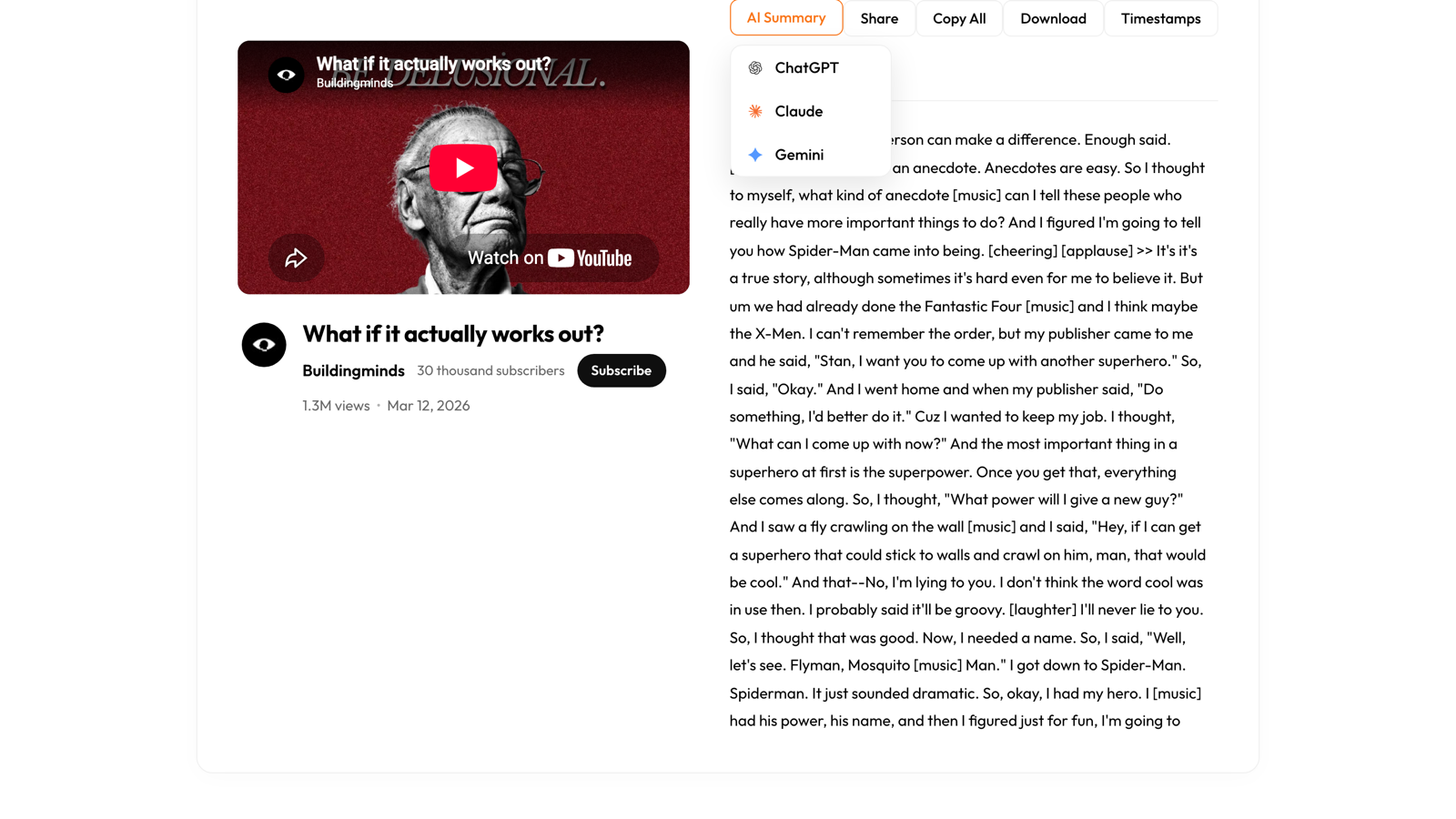
My favourite part is the AI Summary button. One click hands the transcript to ChatGPT, Claude, or Gemini so you can ask for a summary, key takeaways, or a rewrite — without copying anything yourself. A 40-minute video becomes a tight set of notes in about a minute.
Method 2 — Getting the transcript from YouTube itself
If you are already watching a video and only want to read the words, YouTube has a built-in transcript panel on desktop. It is more limited — no clean formatting, no downloads, and no AI hand-off — but it works without any other site.
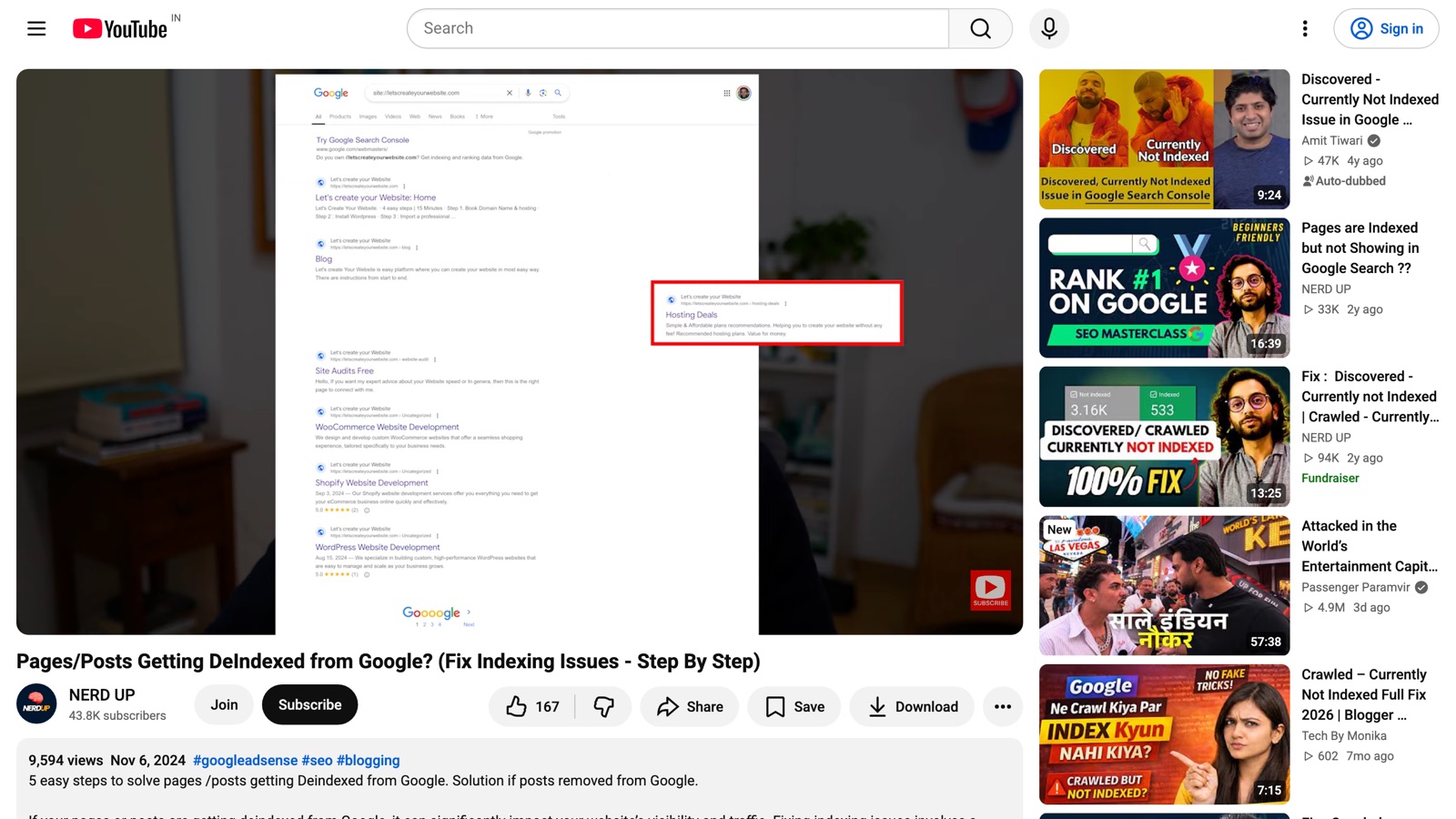
Open the video on desktop. The transcript panel is a desktop-browser feature, so this will not appear the same way in the mobile app.
Click the “…more” button under the video. Below the title and view count, expand the description area using the …more link (or the three-dot menu next to the like button on some layouts).
Choose “Show transcript”. A panel opens on the right with the transcript, broken up by timestamps. You can toggle the timestamps off and switch the caption language if more than one is available. Learn more about how YouTube generates these in YouTube’s official captions help.
Select and copy the text. Drag to highlight the lines you want and copy them. Note that you will usually copy the timestamps along with the words, so you may need to clean it up afterwards — which is exactly the step Method 1 does for you automatically.
Which method should you use?
If you just want to glance at what was said and you are already on the video, YouTube’s own panel is fine. If you want text you can actually work with — copy cleanly, download in the right format, search, or summarise with AI — Method 1 saves you the cleanup and gives you far more to do afterwards. Either way, you never have to sit through the whole video again.
Ready to try it?
Paste a YouTube link and get the full transcript in seconds — free, no sign up.