 Get YouTube Text
How to Get TED Talk Transcripts from YouTube for Free
TED Talks are short, dense, and full of ideas worth keeping. The problem is that a good talk moves fast. You hear a line you want to save, and by the time you grab a pen the speaker is three points ahead. A transcript fixes this. Once a TED Talk is in text, you can read it in a few minutes, highlight the best parts, quote it in an essay, and search it for that one sentence you remember.
The best part is that you do not need an account, an app, or a paid plan to get one. Almost every TED Talk on YouTube has captions, either added by TED or generated by YouTube. If a video has captions, you can turn it into clean, readable text for free. Students, writers, researchers, and anyone building a slide deck can use the same trick.
In this guide you will learn how to get a TED Talk transcript from YouTube for free, step by step. We will use the TED Talk transcript tool on Get YouTube Text, which gives you the full talk as text with one paste. No sign up, no software, and nothing to clean up afterwards.
How to get a TED Talk transcript from YouTube
The idea is simple. You copy the link of the TED Talk on YouTube, paste it into the tool, and read the transcript that comes back. You can then copy it, download it, or send it to an AI for a summary. Here is each step with screenshots so you can follow along.
Step 1: Copy the TED Talk link from YouTube
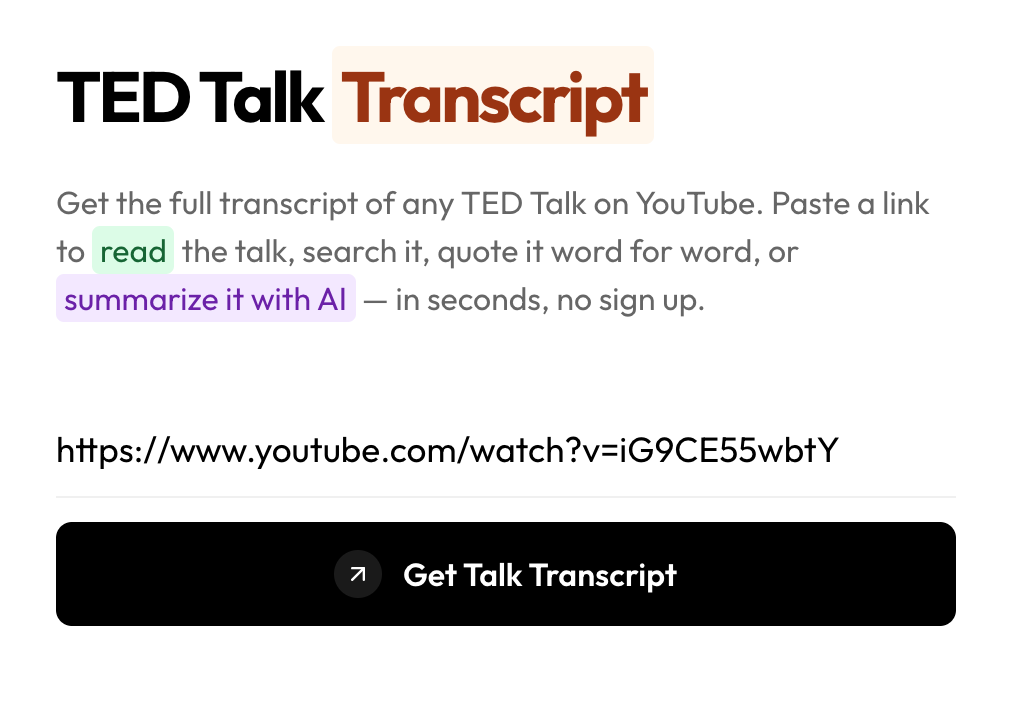
Open the TED Talk you want on YouTube. Copy the link from the address bar at the top of your browser, or click the Share button under the video and copy the link from there. Any normal YouTube link works, including full youtube.com/watch?v=… links and short youtu.be/… links.
Most talks on the official TED channel have proper captions, so they transcribe cleanly. If a talk has more than one caption language, you can pick the one you want later.
Step 2: Paste the link and get the transcript
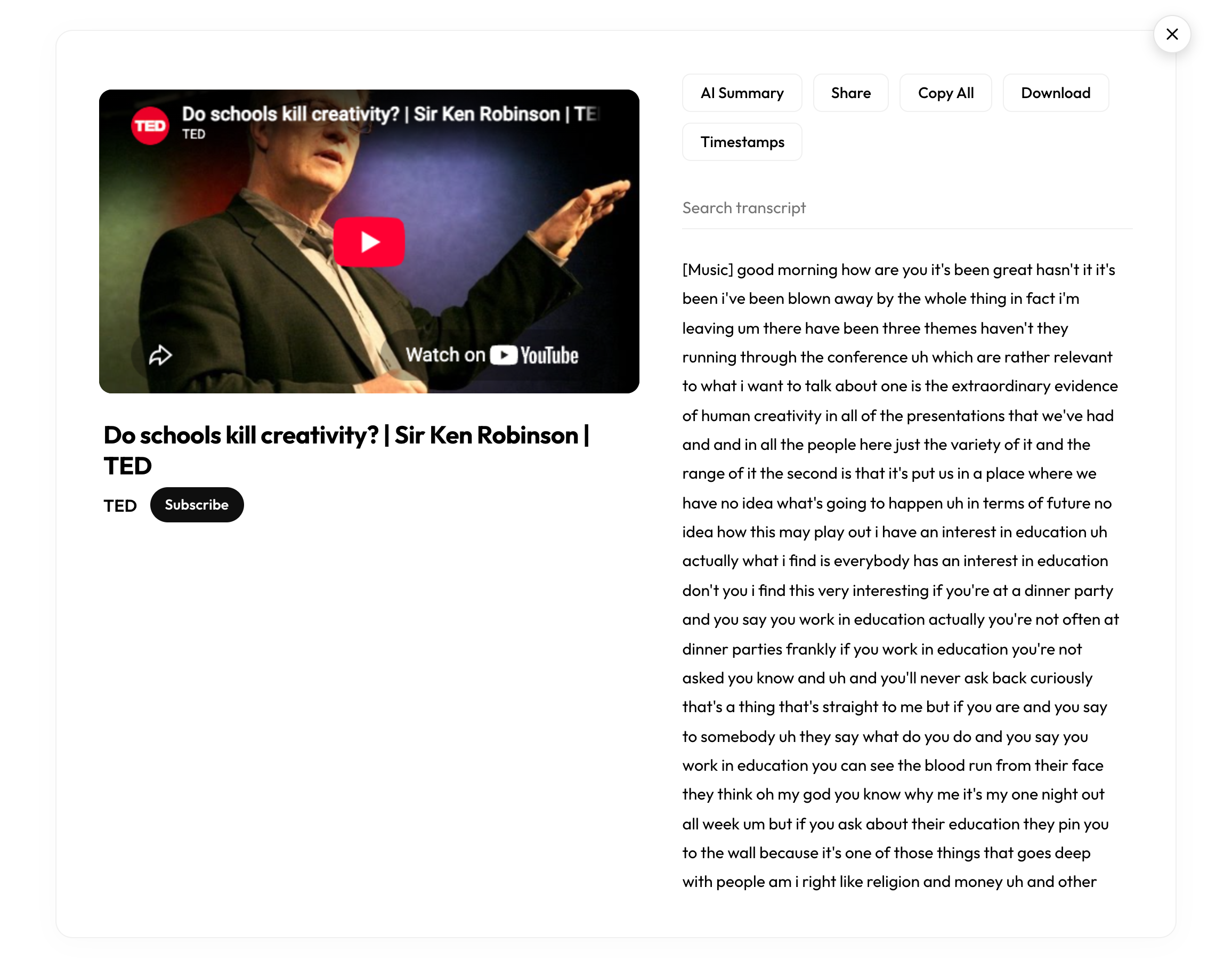
Go to the TED Talk transcript page and paste your link into the box. Click the button to get the transcript. In a few seconds you land on a clean page with the video on one side and the full talk as text on the other.
The transcript is synced to the video. As the talk plays, the current line is highlighted, and clicking any line jumps the video straight to that moment. This makes it easy to check a quote or find the exact part you care about without scrubbing through the whole talk.
Step 3: Read, search, and jump to any moment
There is a search box above the transcript. Type a word or phrase and jump right to it. This is handy for long talks when you only need one idea or one line. You can also switch the view to show or hide timestamps, depending on whether you want to read it like an article or study it moment by moment.
If the talk has captions in more than one language, you can switch languages too. That is useful when you are studying a language or need the talk in your own.
Step 4: Copy, download, or summarise the talk
Now put the transcript to work. Copy All puts the whole talk on your clipboard so you can paste it into a document or your notes. Download saves it as TXT, SRT, VTT, CSV, JSON, or Markdown, with or without timestamps. You can even break it into 30 or 60 second chunks, which helps if you are feeding it into a study tool or an AI pipeline.
The AI Summary button is the fastest way to get the key points. One click hands the full transcript to ChatGPT, Claude, or Gemini, so you can ask for a summary, the main lessons, or a short set of notes. An 18 minute talk becomes a tidy page of takeaways in about a minute.
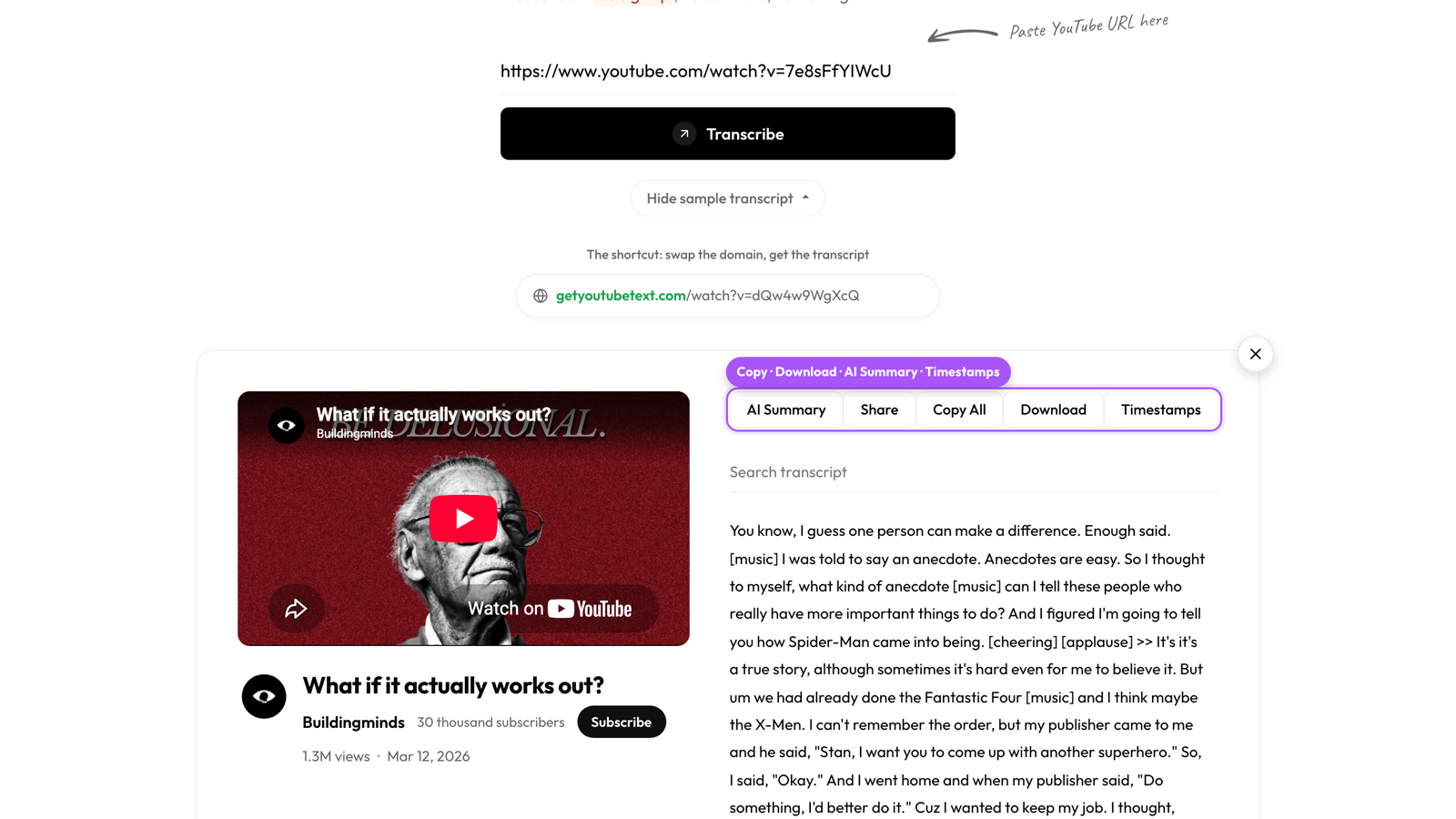
You can try it right here without leaving this page:
Why get a TED Talk transcript?
Reading is faster than watching. A transcript lets you skim a talk in a couple of minutes and decide if it is worth your full attention. For students, a text version is easy to highlight, paste into notes, and cite in an essay. For writers and creators, a transcript is a ready source of quotes and ideas you can build on.
A transcript is also better for memory. When you read and mark up a talk, you remember more of it than when you watch once and move on. And because the text is searchable, you can come back months later and find the exact line you loved without replaying the video.
What if a TED Talk has no captions?
A transcript can only be built when the video has captions or auto-generated captions. The good news is that almost every talk on the official TED channel has them. If you open a talk and the tool cannot find any text, the video likely has captions turned off, and no tool can pull words that are not there.
YouTube also blocks transcript requests at random sometimes. This happens to every transcript site, not just ours, and it usually works on the second try. If you hit that, just press retry. You can also use our free Chrome extension, which reads the transcript right on the YouTube page and often works when a request gets blocked.
Get any TED Talk as text
Paste a TED Talk link and read the full talk in seconds. Free, no sign up.
Prefer a dedicated page? Use the TED Talk transcript tool, or add the free Chrome extension to grab transcripts without leaving YouTube.