 Get YouTube Text
How to Convert a YouTube Video to PDF
Sometimes a video is easier to use as a document. Maybe you want to print a lecture and highlight it, read a long talk on a flight with no internet, or keep a tidy copy of a tutorial in your study folder. A PDF is perfect for all of that. It opens on any device, prints cleanly, and is easy to share or mark up by hand.
You cannot save the video itself as readable text, but you can save what was said. Almost every YouTube video has captions, either added by the creator or generated by YouTube. Those captions can be turned into a clean, titled PDF of the full transcript. No screen recording, no retyping, and no paid software.
In this guide you will learn how to convert a YouTube video to PDF for free. We will use the YouTube to PDF tool on Get YouTube Text. You paste a link, the transcript loads, and you save it as a tidy PDF with the video title and thumbnail at the top. Everything is built in your browser, so the file never leaves your device.
How to convert a YouTube video to PDF
The flow is quick. You paste the video link, let the transcript load, choose whether to keep timestamps, and save the file as a PDF. Here is each step with screenshots so it is easy to follow.
Step 1: Paste the YouTube link and click Get PDF
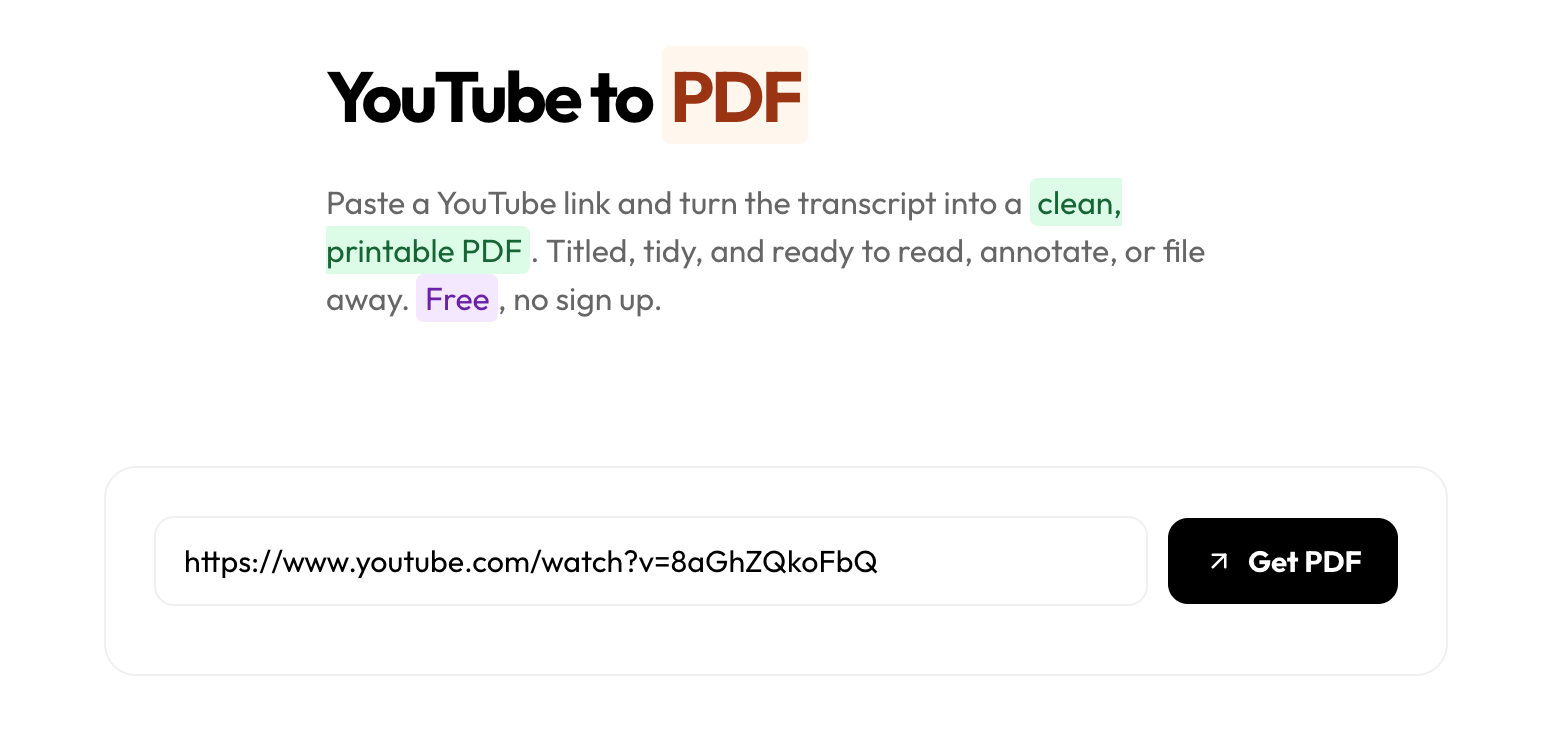
Open the video you want on YouTube and copy its link from the address bar or the Share button. Then open the YouTube to PDF tool and paste the link into the box. Click Get PDF. The tool reads the video’s captions and loads the full transcript for you. Any normal YouTube link works, including Shorts and short youtu.be/… links.
Step 2: Choose whether to keep timestamps
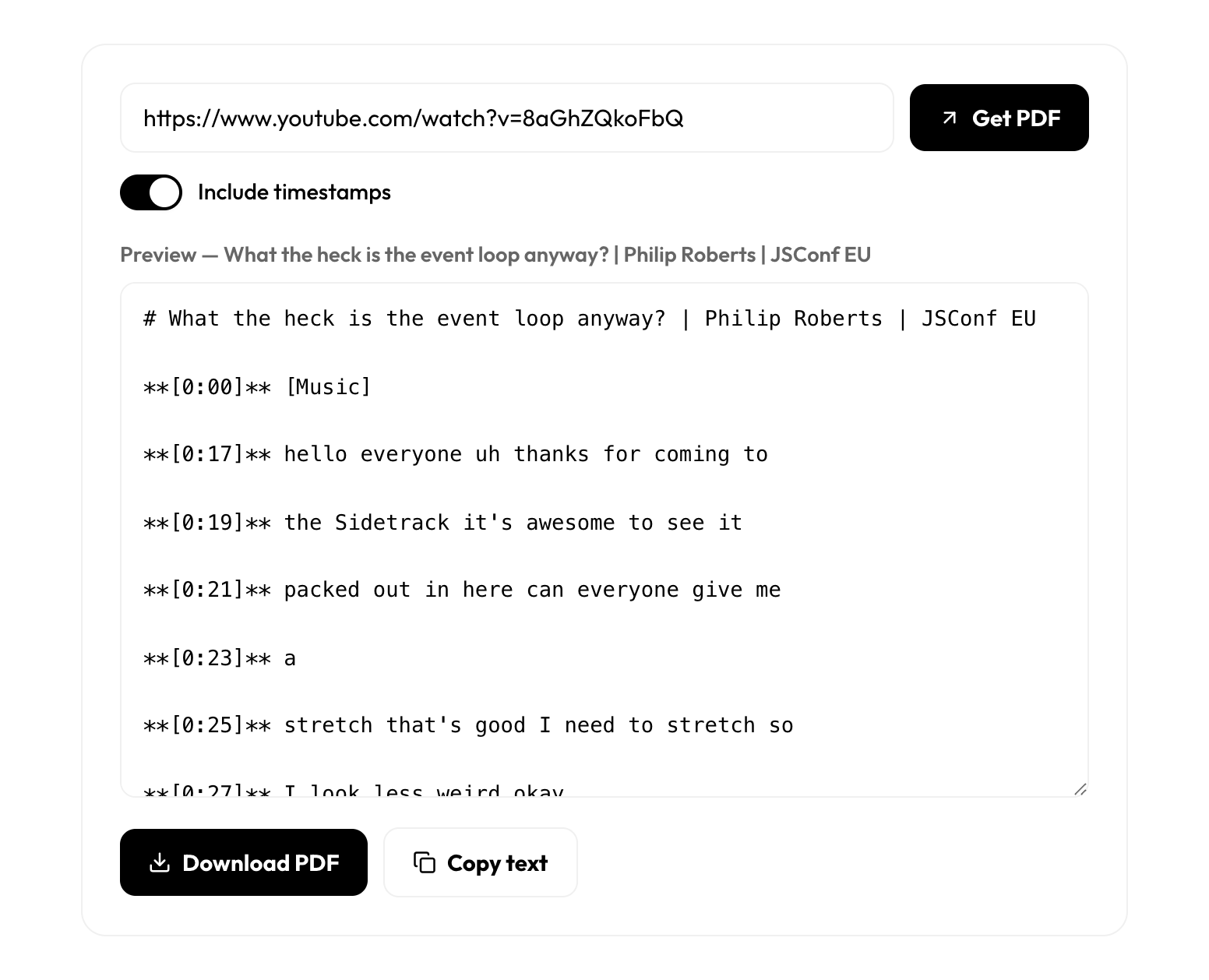
Once the transcript loads, you get to pick how it looks in the document. Keep timestamps on for a study-friendly layout where each line is marked with its time. This is handy when you want to match a note back to a moment in the video. Turn timestamps off for clean, flowing paragraphs that read like an article. Pick whichever fits what you are doing.
Step 3: Review the preview
Take a quick look at what will go into the document. The PDF opens with the video thumbnail and title at the top, followed by a link back to the source video, then the full transcript. Checking it now means no surprises when you save. If the text looks right, you are ready for the last step.
Step 4: Save it as a PDF
Click Download PDF. Your browser’s print window opens. In the destination or printer menu, choose Save as PDF instead of a real printer, then click Save and pick where to store the file. That is it. You now have a clean, titled PDF of the whole video on your device.
This step uses your system’s own print-to-PDF, which every modern browser has built in. It means the file is made right on your computer, so nothing is uploaded and nothing is stored on our side.
What is inside the PDF?
The file is built to be a tidy document, not a wall of text. Here is what you get:
- The video thumbnail and title at the top
- A link back to the source video so you can find it again
- The full transcript, with timestamps kept or removed based on your choice
- Readable spacing so it prints cleanly and is easy to highlight
Because it is a real PDF, it opens on any phone, tablet, or computer, prints without a mess, and is simple to share or file away with your other notes.
Who is this useful for?
Students save lectures and talks as PDFs to read and highlight offline, which is far easier than scrubbing through a video again before an exam. Researchers and writers keep a tidy copy of a video’s content so they can cite it later. Anyone who simply prefers paper can print the transcript and mark it up by hand.
It is also a good way to make a long video skimmable. Reading a transcript takes a fraction of the time of watching, and once it is a PDF you can search it, highlight it, and keep it for good.
Does the video need captions?
Yes. The PDF is built from the video’s transcript, so it only works with videos that have captions or auto-generated captions. Most spoken videos do. If a video has captions turned off, there is no text to put in the document, and no tool can create words that were never there.
YouTube also blocks transcript requests at random now and then. It happens to every transcript site, and it usually works on the second try, so just press retry if you see it. You can also use our free Chrome extension, which reads the transcript on the YouTube page and often works when a request gets blocked.
Want a different format instead?
A PDF is great for reading and printing, but it is not the only option. If you need subtitles for a video editor, grab an SRT file. If you want notes that drop into your second brain, use YouTube to Markdown. And if you just want to read and search the transcript first, start with the main YouTube transcript tool.
Turn any video into a clean PDF
Paste a YouTube link and save the full transcript as a tidy, printable PDF. Free, no sign up.
Open the YouTube to PDF tool, read the transcript first with the main transcript tool, or add the free Chrome extension to grab transcripts without leaving YouTube.