 Get YouTube Text
Best YouTube Transcript Chrome Extensions (2026)
A Chrome extension is the fastest way to get a YouTube transcript. It puts the text right next to the video. You do not have to copy the link. You do not have to open a new tab. You just click a button, and the words show up.
But the extensions are not all the same. Some are free. Some make you sign up before you can even try them. Some give you clean text you can copy and download. Others just open YouTube’s own caption panel and stop there. A few also add AI summaries or let you click a line to jump to that part of the video.
I tested the popular YouTube transcript Chrome extensions so you do not have to. Below you will find what each one does, who it is best for, a screenshot of it, and its price. I build one of them, so I will tell you that up front and let the features speak for themselves. Let us get into it.
Why use a YouTube transcript extension?
A transcript is the text of a video. It is every word that is said, written down. Once you have it, you can do a lot of things that are hard with video alone. Here is why that helps.
You can read instead of watch. Reading is much faster than watching. You can go through a long video in a few minutes and skip the parts you do not need. You can search inside the video. Instead of dragging the timeline back and forth, you type a word and jump right to it. You can copy and save the words. Grab a quote, or save the whole thing to your notes. You can make a summary with AI. Send the text to ChatGPT, Claude, or Gemini and get the main points in seconds.
An extension makes all of this even quicker, because it lives inside your browser. You stay on the video, click once, and the text is there. That is the whole point: less clicking, less waiting, and the words ready when you want them. The tools below each do this, but they do different amounts of extra work on top.
You can try the simplest version right now, with no sign up:
The best YouTube transcript Chrome extensions at a glance
Here is a quick look before the details. “Free” means there is a real free tier, not just a trial.
| Extension | Best for | Free | Sign up |
|---|---|---|---|
| Get YouTube Text | Clean one-click transcript + downloads | Unlimited, free | No |
| Glasp | Highlighting + AI summary | Yes | Yes |
| Tactiq | Meetings + YouTube | 10/month | Yes |
| NoteGPT | Transcript + AI notes | Yes, generous | Yes |
| Eightify | AI key-point summaries | Limited | Yes |
1Get YouTube Text
I will start with my own tool, because it is the one I built to fix this exact problem. Get YouTube Text is a free YouTube transcript extension. There is no sign up, no limit on how many videos you can do, and nothing extra to install. You click the button on a video, and you get the full transcript as clean text in a second.
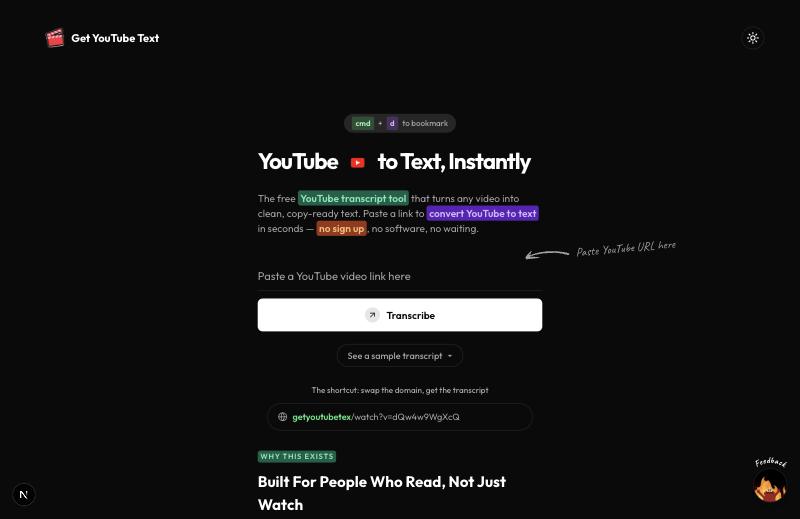
What makes it different is what you can do after the text shows up. You can read along with the video, and click any line to jump the video to that moment. You can search the text to find one word fast. You can copy the whole thing, or download it as TXT, SRT, VTT, CSV, JSON, or Markdown, with or without timestamps. There is a one-click AI Summary button that sends the text to ChatGPT, Claude, or Gemini. There is even a built-in notes pad, and you can save a transcript to Notion or a PDF.
2Glasp (YouTube Summary with ChatGPT)
Glasp is popular with people who like to save and highlight ideas. Its extension shows the transcript next to the video and lets you highlight the lines you want to keep. It can also make an AI summary of the video with one click.
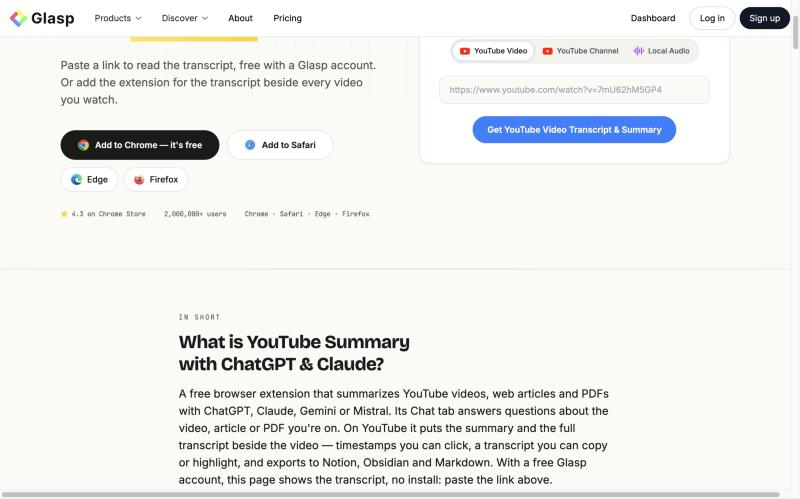
The highlighting is the best part, and it works across many websites, not just YouTube. So if you collect quotes and notes from all over the web, Glasp fits your habit well. The trade-off is that you sign in to use most of it, and the summary leans on your own AI account. For a quick, plain transcript, it does a little more than you may need.
3Tactiq
Tactiq is best known for meeting transcripts. It runs during Google Meet, Zoom, and Teams calls and writes down what people say in real time. It also pulls transcripts from YouTube videos, and it can add AI summaries and answer follow-up questions.
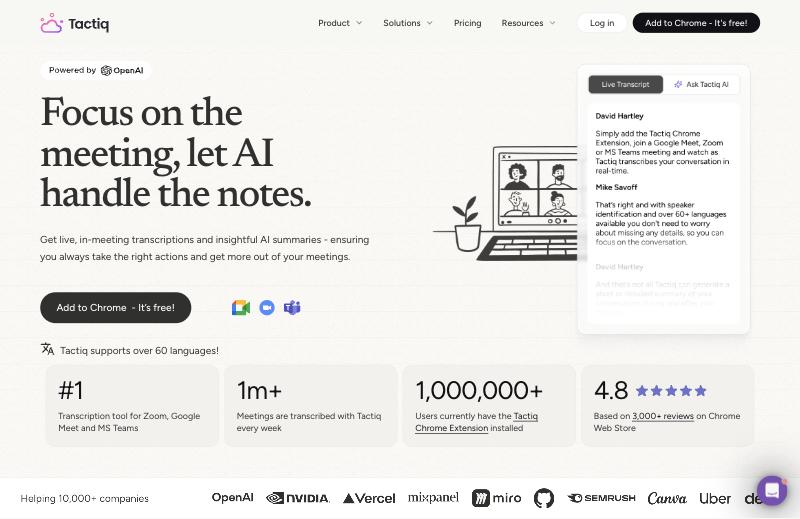
If your main job is taking meeting notes, and YouTube transcripts are a nice extra, Tactiq is a strong pick. It supports many languages and can tell speakers apart. For a one-off YouTube transcript, it is a bit heavier than a simple paste-a-link tool, because it is really built for live calls.
4NoteGPT
NoteGPT mixes a free transcript tool with a set of AI study tools. You give it a video, and it pulls the transcript. Then it can make a summary, notes, or even a mind map from it. It works with many languages, and the basic transcript works without an account.
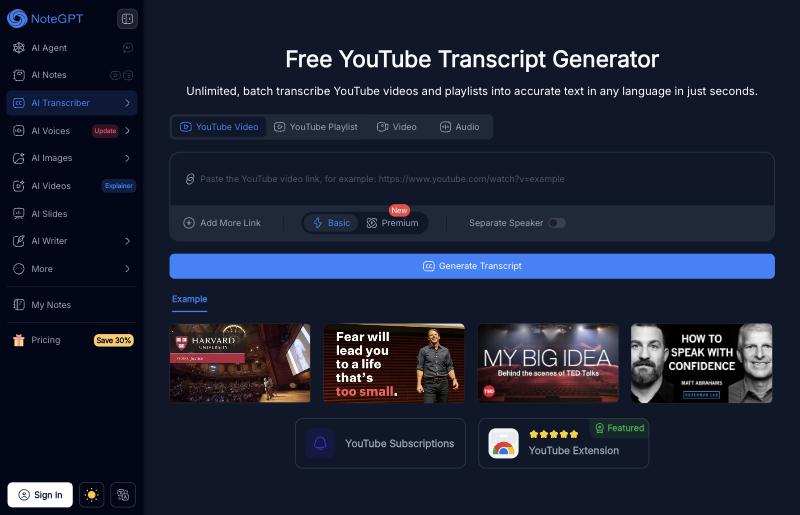
This is a good choice for students and researchers. You get the transcript and the study material in one place, so you do not have to copy the text into another tool. If you mainly want AI notes made for you, it does more of that work than a plain transcript tool.
5Eightify
Eightify is about summaries, not the full transcript. It breaks a video into a short list of key points, each with a timestamp. You read the points and decide if the video is worth watching, or you just take the points and move on.
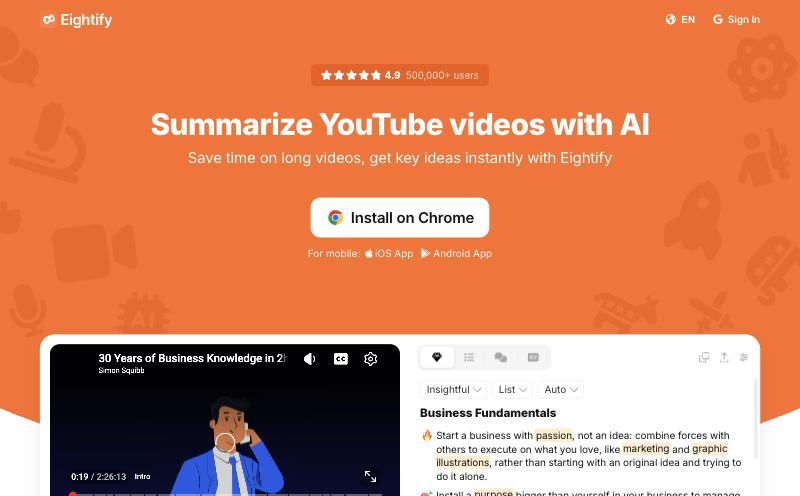
It is handy for very long videos when you only want the big ideas. The catch is that the free use is limited and you need an account, and it does not really give you the raw transcript to copy. So think of it as a summary helper, not a transcript tool.
How to choose the right one
The best pick depends on what you want to do with the text. Here is a simple way to decide.
If you want clean text to read, copy, or download, pick a plain transcript tool like Get YouTube Text. It is free, needs no account, and gives you real downloads and an AI hand-off. If you highlight and save ideas from all over the web, Glasp fits your habit. If you mostly take meeting notes, Tactiq covers meetings and YouTube in one place. If you are a student who wants AI notes made for you, NoteGPT does that well. If you only ever want short summaries of long videos, Eightify is built for that one job.
One last tip. Try to avoid any extension that forces you to make an account before you can even see if it works. Your transcript is sitting right there in the video’s captions. Getting it should not cost a sign up. Most people start with a free, no-account tool, and only move to a paid one when they need more.
No extension? Use the web version
You do not actually need an extension at all. You can paste any YouTube link into Get YouTube Text and get the same clean transcript in your browser. Or use the shortcut: on any video, change youtube.com to getyoutubetext.com in the address bar and press enter. You land right on the transcript.
Get transcripts without leaving YouTube
Add the free Chrome extension, or paste a link on the web. No sign up either way.
Add Get YouTube Text to Chrome, or use the web transcript tool.